
Overview
WorkChat is a secure communication tool that allows you and your staff to send messages and images in real time without exchanging personal contact information. WorkChat can be further customized to fit exactly the type of communication you’d like for your staff to have access to. For example:
- Use in broadcast-only mode so managers can send out one-way messaging to all staff.
- Empower employees to start and post in custom channels to communicate with one another.
Considerations
- WorkChat can only be enabled or disabled through the When I Work web app.
- WorkChat cannot be enabled for an account with over 800 users.
- You must be a Manager or Admin user to enable or disable WorkChat for an account.
- Disabling WorkChat will delete all previously sent messages and they cannot be recovered.
Enable or disable WorkChat
When you enable or disable WorkChat, it impacts all users that belong to the account. By default, WorkChat is enabled in a broadcast-only mode. This mode allows the admin and managers to post in a read-only workplace channel. You can adjust whether you want WorkChat to serve as a one-way or collaborative communication tool in the app settings.
Hover over , then select General Settings.
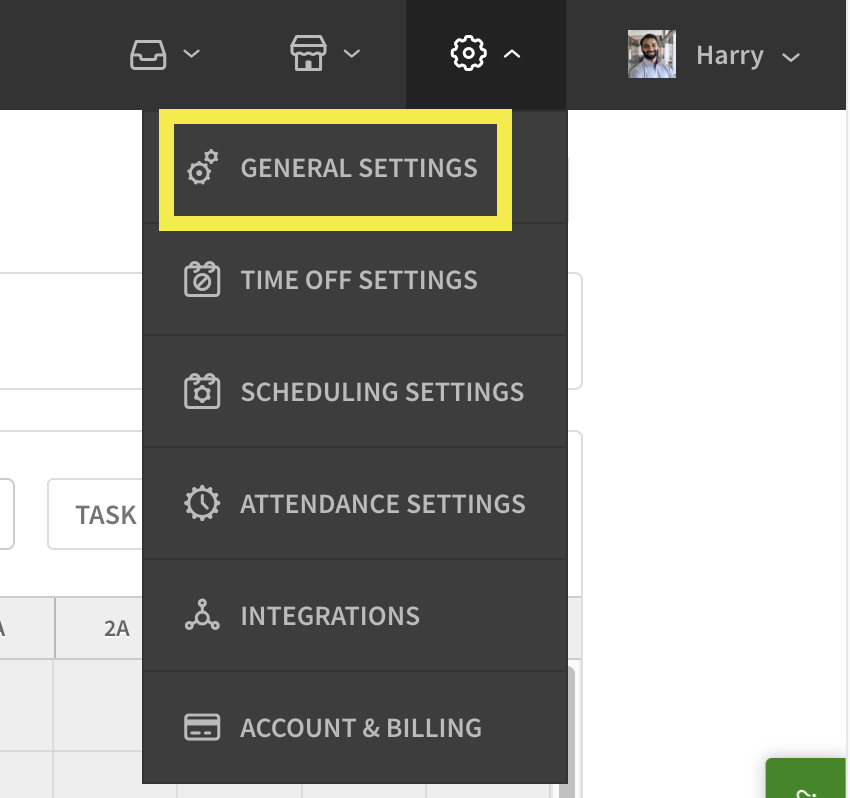
- Click the toggle next to WorkChat to enable or disable.
If you don’t see WorkChat, your account doesn’t meet the requirements.
Callout a Description Select to allow supervisors and employees to post in the workplace channel. By default, only managers and admins can post in the workplace channel. Callout b Description Select to allow any user to create and post in additional channels. By default, no one can create or post in additional channels.
When unchecked, all users including supervisors, managers, and the admin, will be prevented from creating new channels.Callout Description a Select to allow supervisors and employees to post in the workplace channel. By default, only managers and admins can post in the workplace channel. b Select to allow any user to create and post in additional channels. By default, no one can create or post in additional channels.
When unchecked, all users including supervisors, managers, and the admin, will be prevented from creating new channels. - Click Save near the top-right corner of the page.
You may need to refresh the page to make the change take effect in your web browser.
Clearing the WorkChat message history
If you need to clear the message history, simply turn off WorkChat momentarily. When you turn off WorkChat, we’ll delete all of the previously sent messages.
- Follow the steps above to turn off WorkChat and save your changes.
- Wait a few seconds.
- Follow the steps above to turn WorkChat back on and save your changes.