
Overview
When I Work integrates with Rippling via API to help streamline employee management and payroll processes. This integration allows you to:
-
- Sync user profiles in order to create, update, and archive users in When I Work based on changes in Rippling
- Sync Positions and Schedules within the account
- Update the user profile assignments of these objects within a user profile
- Send worked hours like regular, holiday, and overtime from When I Work to Rippling
- Send PTO hours from When I Work to Rippling
Changes in Rippling should reflect in When I Work in about 10 minutes via the API connection.
- Automatic syncing happens once every 24 hours to ensure consistency between Rippling and When I Work.
- The Sync button can be used to perform this function manually anytime if changes are not reflected in a timely manner.
Considerations
Once a user has been synced via the Rippling integration, edits made to their Rippling employee profile will update in When I Work. The following profile fields become uneditable in When I Work and are fed from Rippling instead:
- First Name
- Last Name
- Email
- If a user exists in more than one workplace account in When I Work and their email changes in Rippling, this will not be updated on the When I Work profile
- Mobile Number
- Employee ID
- Start Date
- Employment Type
- Wages
If a user is terminated/deactivated in Rippling, their profile will be archived in When I Work.
- If that user has any upcoming shifts on the schedule, those shifts will be moved into the OpenShift row of the scheduler
Requirements
- Your workplace must use Time Clock and Attendance in When I Work to set up payroll integrations
- Time & Attendance or Identity & Access Management Connector from Rippling
- Only an Admin or a Manager with payroll access can set up the integration
- Only one Rippling account can be connected to one When I Work account
- The linked Rippling account must have only one pay schedule and all users with worked hours must be assigned to the single pay schedule in Rippling
Not Supported
- Sending hours is currently not available for users outside the United States. International users can still connect the integration for user syncing, position matching, and CSV payroll exports
- Pay rates or estimated wages will not be sent from When I Work to Rippling
- All timesheets are sent over together – if hours need to be sent again, you will need to clear any existing hours out of Rippling before sending updated hours from When I Work
- Custom cut-off times are not supported, i.e. if your payroll cutoff time is 5am on the last day of the pay period
- Auto-matching of Positions is not supported, but they can be manually matched in the Positions tab of the integration.
Salaried users or Contractors?
- The integration doesn’t have the ability to send hours differently for contractors and salaried users. Their hours are sent as though they are hourly W2 employees.
- If you don’t want to send hours for these users, you can select Ignore next to their name(s) in the Users tab of the integration setup page. This removes their timesheets when export hours.
- You will also want to make sure these users are not included in the access assignments list in Rippling. This ensures they are ignored from the user syncing and not recreated in When I Work.
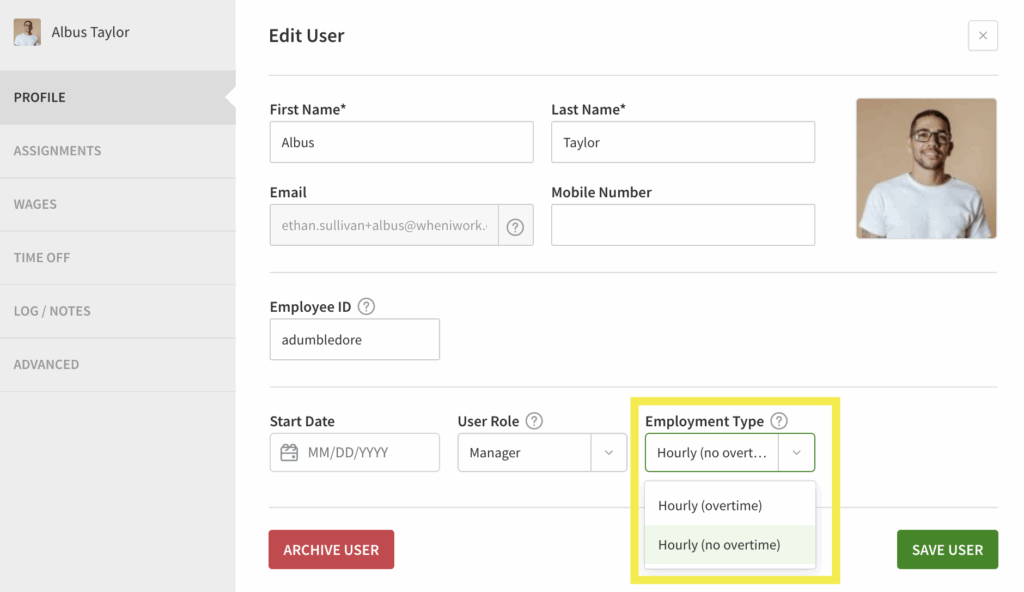
- If you do want to export hours for these users, set up their employment type as hourly (no overtime) in their When I Work profile. This ensures overtime is not calculated on the hours worked.
Setting up the Rippling Integration
Connect your When I Work account to Rippling
Hover over , then select Integrations.
- Click See all integrations.
- Under Rippling, click Learn more.
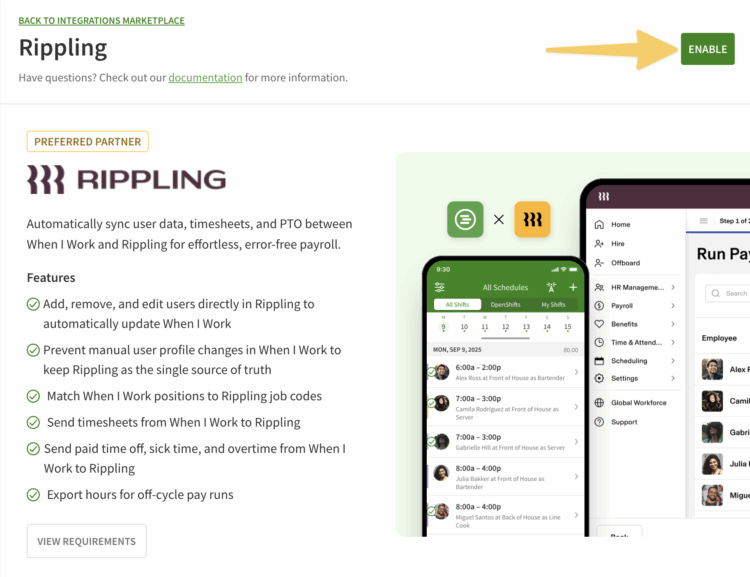
- On the right side of the page, click Enable.
- Sign in with your Rippling account and authorize When I Work to access your account.
- If you have SSO set up with Rippling already, you will be able to use this for When I Work as well.
- After authentication, the page should return you back to When I Work.
Configuration
User Matching
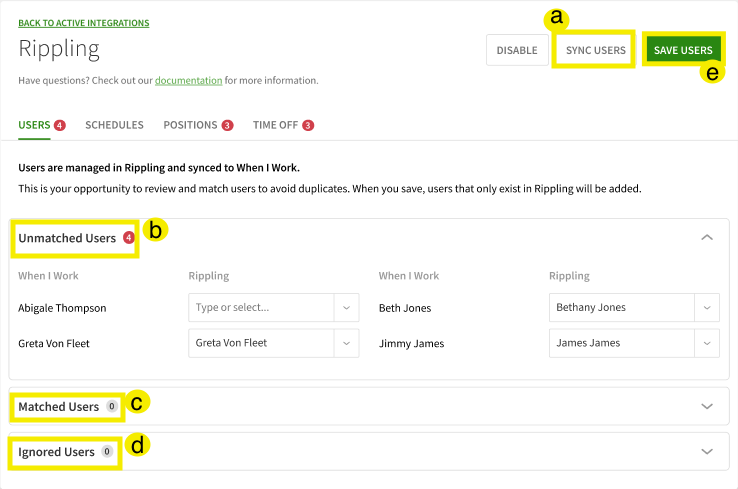
- When initializing, any employees that already exist in both systems will automatically match based on first name, last name, and email address.
- Using the sync button after creating users in Rippling will check data in Rippling and run all sync functions. This will:
- Add users from Rippling to When I Work that don’t already exist
- Edit the profile information of users in When I Work that was changed in Rippling
- This includes their position and schedule assignments
- Archive users in When I Work that were terminated/deleted in Rippling
- Auto-match user information in When I Work to Rippling employee information
- A loading state message will appear when running sync.
- If you see this, it is running and will be completed shortly
| Callout |
| Name |
| Description |
| a |
| Sync Users |
| Sync users that exist in Rippling to When I Work. |
| b |
| Unmatched Users |
| Shows the list of users that are not currently matched. Use the dropdown selector to the right of each user’s name to manually create matches or ignore them. |
| c |
| Matched Users |
| Shows the list of currently matched users. Use the to manually unmatch or ignore them. |
| d |
| Ignored Users |
| Shows the list of currently ignored users. Use the to manually match them. *Any ignored users will not have their timesheets synced when sending hours from When I Work to Rippling. |
| e |
| Save |
| Use the Save button to save any changes made before moving to another section. |
| Callout | Name | Description |
| a | Sync Users | Sync users that exist in Rippling to When I Work. |
| b | Unmatched Users | Shows the list of users that are not currently matched. Use the dropdown selector to the right of each user’s name to manually create matches or ignore them. |
| c | Matched Users | Shows the list of currently matched users. Use the to manually unmatch or ignore them. |
| d | Ignored Users | Shows the list of currently ignored users. Use the to manually match them. *Any ignored users will not have their timesheets synced when sending hours from When I Work to Rippling. |
| e | Save | Use the Save button to save any changes made before moving to another section. |
Schedule Matching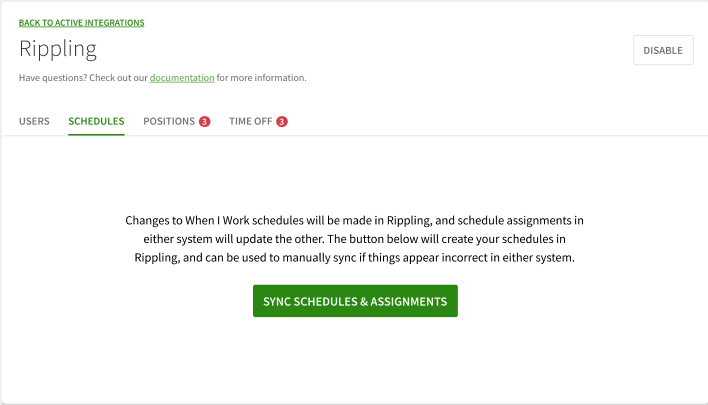
- When syncing, the integration will look for a job dimension in Rippling called “When I Work Schedules”
- If this exists, this dimension will be used for matching Rippling job codes to When I Work Schedules
- If one does not exist, one will be created with the name “When I Work Schedules”
- Any schedule in When I Work that does not exist in Rippling, the integration will create in Rippling
- In the case of duplicate schedule names in When I Work, each subsequent name will include a number. (e.g. “Downtown 2”, “Downtown 3”, etc)
Position Matching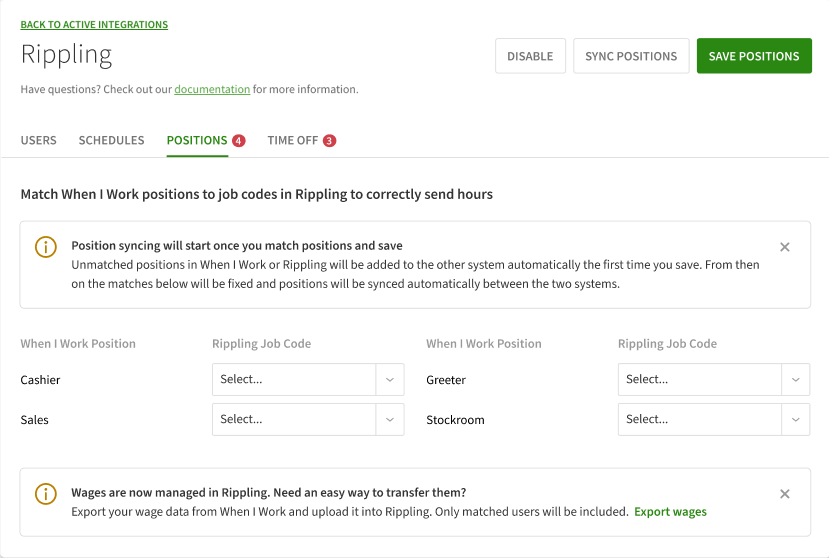
- When syncing, the integration will look for a job dimension in Rippling with a pay rate and with at least one positions matched to a job code
- If a dimension is found, positions will sync and the following will happen:
- A new job code will be created in Rippling for every unmatched position in When I Work
- A new position will be created in When I Work for every unmatched Rippling job code for the dimension
- Names of positions in When I Work will be updated to match the names in Rippling (case sensitive)
- If no dimension is found with a pay rate the following happens:
- A new job dimension is created in Rippling called “Position”
- The new dimension is set to have pay rates
- New job codes for each position in When I Work is created in Rippling
- If a dimension is found, positions will sync and the following will happen:
- Multiple Positions in When I Work can be matched to the same Job Code in Rippling
- Job Codes can be unmatched from Positions
- A count badge will be visible with the number of unmatched positions
Time Off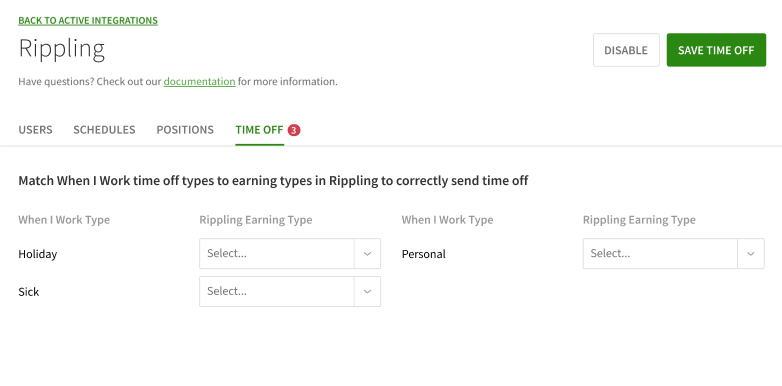
- This tab will only be visible if the Time Off Requests feature has been enabled in your When I Work account
- Match a time off type from When I Work to an earning code in Rippling.
- The same earning type in Rippling can be selected for multiple time off types in When I Work.
- When I Work custom time off types are supported and can be matched to Rippling earning types.
Check pay periods
Make sure your pay periods are the same in both Rippling and When I Work.
Viewing pay periods in Rippling
- Steps coming in a future update
Viewing pay periods in When I Work
To view your When I Work pay period dates, hover over the Attendance icon and select Timesheets.
Click to the right of the dates under Pay Period. 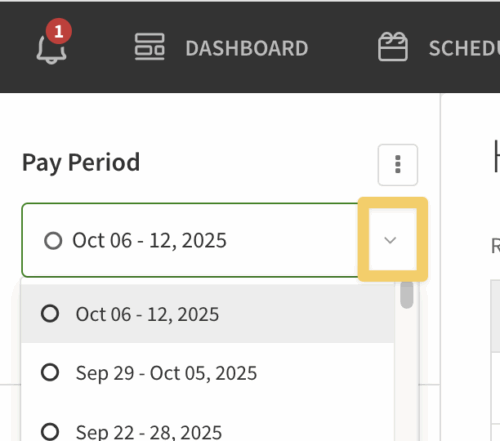
If you haven’t yet set up your pay periods, the system will guide you through the process. If you need to modify your pay periods, you can edit pay period dates, or go to your Attendance Settings and modify the pay period length. The integration does support custom pay period lengths.
Sending Hours (aka. Running Payroll)
**Currently only available for users in the United States.
Sending hours will send all hours, including regular time, overtime, and PTO hours, but wage information will not be transmitted.
Hours will not be sent for any unmatched or ignored users.
To send hours from When I Work to Rippling, start by closing and exporting pay period hours.
- When you get to the export step, click Send Hours under the Rippling logo.
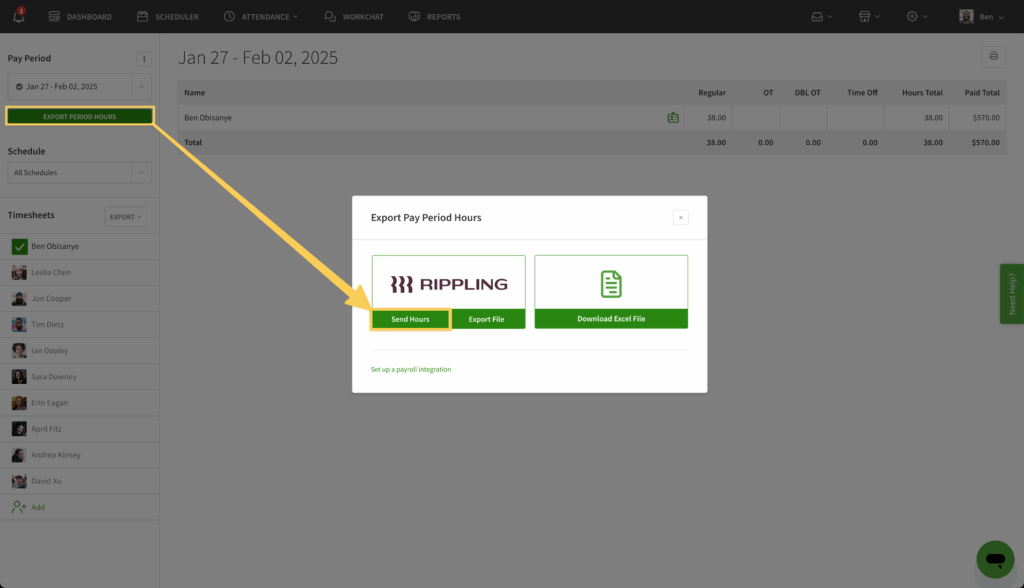
- Select your pay run from the dropdown and click Send Hours.
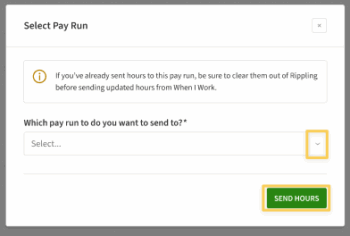
- An error will appear if the selected pay run does not match a pay period in Rippling.
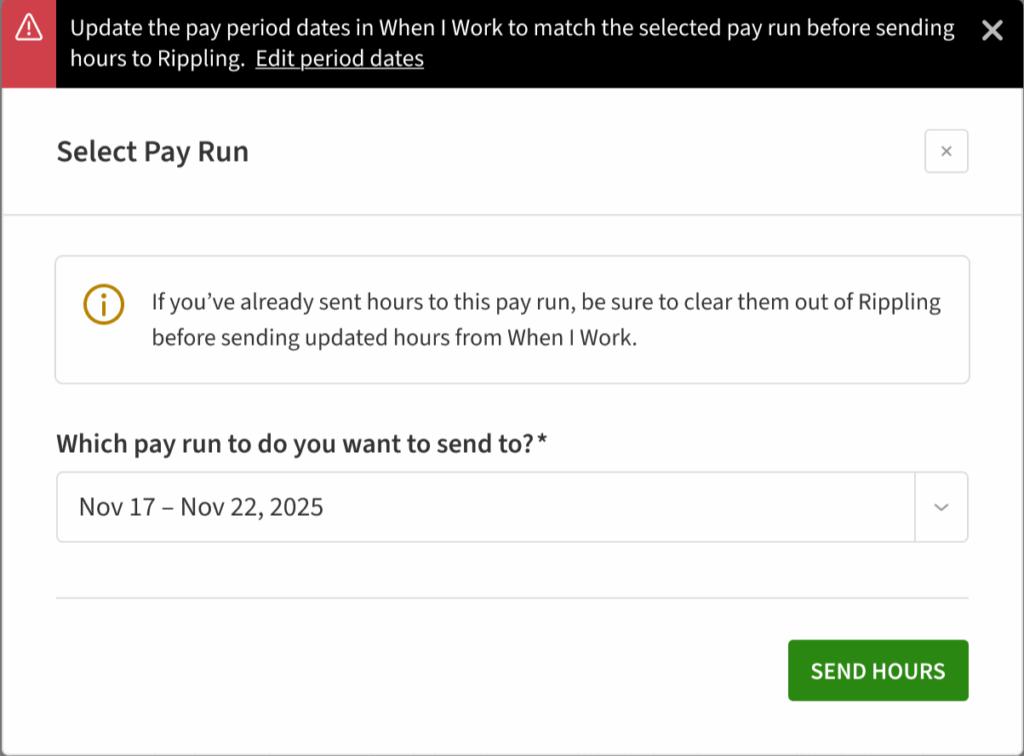
- Clicking Edit period dates will reopen the pay period in When I Work and the display will change to allow editing of the pay period dates to match Rippling.
- An error will appear if the selected pay run does not match a pay period in Rippling.
- After edits are made and Send Hours has been clicked, you will see a loading modal with a message that the hours are being sent.
- Do not leave this page while the loading modal is visible.
- A success message appears in the upper right corner when complete.
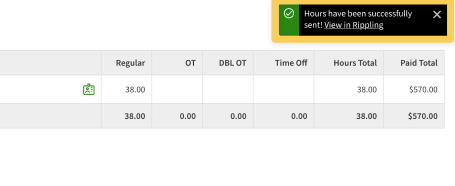
- Click View in Rippling to be directed to Rippling where you can confirm all hours, approve timesheets, and finish your payroll run.
Exporting the File
You have the option to manually export a CSV file for review and upload it into Rippling.
This is great for businesses:
- Outside the United States or Canada
- With employees outside the United States or Canada
- Who want a more manual review/upload process for payroll
At the export step, click Export File. 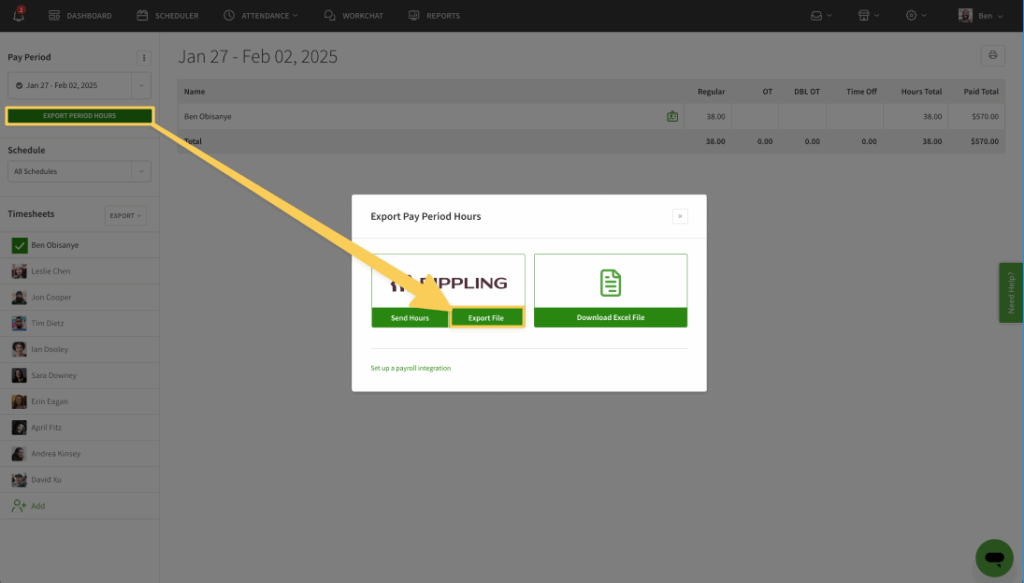
- This will connect with Rippling and obtain pay run information.
- After a loading period, select your pay run and then click Download File.
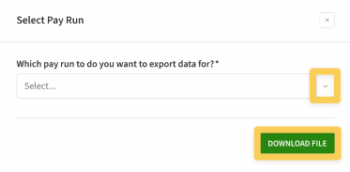
- An error will appear if the selected pay run does not match a pay period in Rippling.

- Clicking Edit period dates will reopen the pay period in When I Work and the display will change to allow editing of the pay period dates to match Rippling.
- An error will appear if the selected pay run does not match a pay period in Rippling.
- After edits and the Download File button has been clicked, you will see a loading state modal appear
- Do not leave the page
- Once complete, you will be able to open the file to review and save it to your device.
Wages
A banner will appear if you have pay rate information added to any When I Work user profile.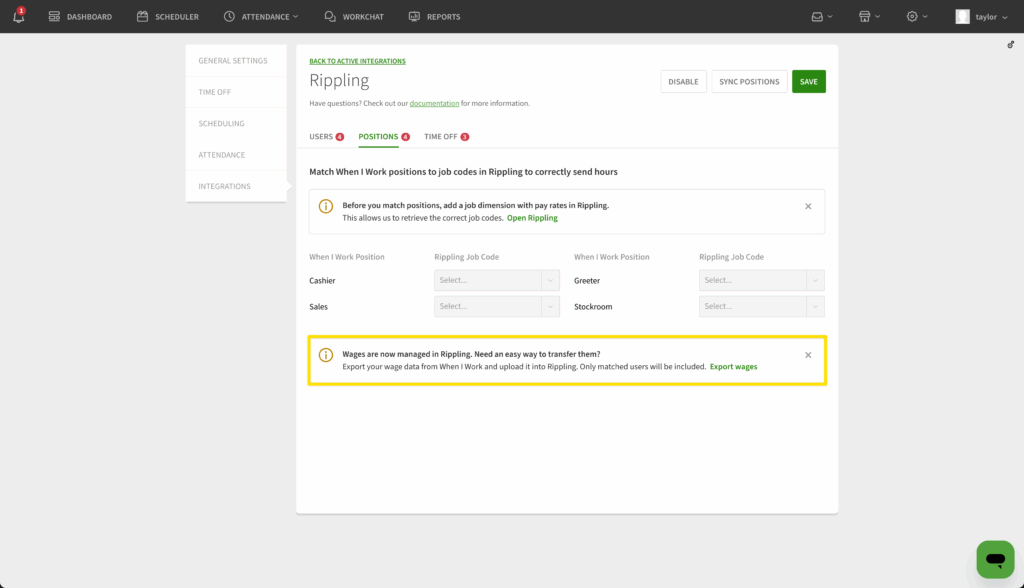
- Clicking Export Wages button allows you to download a CSV with pay rate information included that can be uploaded into Rippling to update wage information by position for users.
- Upon clicking the link, a spinner is displayed next to it while the file is being generated
- The file will only include users who are matched between When I Work and Rippling.
- Any users who have been unmatched or ignored will not be included
- Uploading the file will add wages for users in Rippling who didn’t have wage information already.
- Any existing wage information in Rippling will be overwritten by the values in the file