
Overview
If your manager has approved the feature, you can use the Split Shift option to split your shift in two. This allows you to swap or drop a part of your shift.
Considerations
- Your employer has the option to disable shift splitting in the Scheduling Settings.
- Splitting shifts can only be done on the When I Work web application.
Splitting a shift
- As Supervisor, Manager or Admin user, hover over your name, and then select My Schedule.

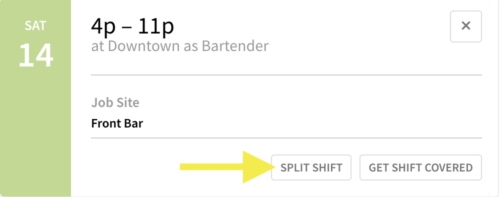
- Click the shift you want to split to see the details.
- Click Split Shift.
- Drag the slider to the time where you’d like to split the shift. When finished, click Split Shift.
NOTE: Depending on your employer’s settings, the minimum split you can make may be 30 minutes, 1 hour, or 2 hours.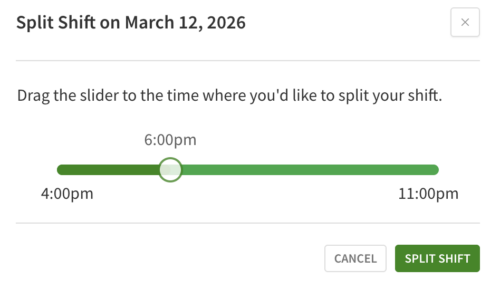 You will see that your one shift has turned into two.
 - Swap or drop the shifts that have been split or even split it again.
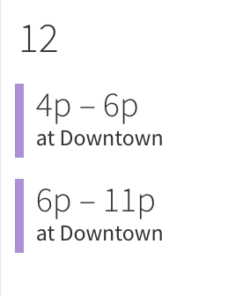 NOTE: Once a shift is split, it cannot be undone. You would have to get in touch with a manager to delete the split shifts and recreate the one shift.