
Overview
If your users can’t make it to their shift, you can find a replacement to quickly find another user who can work the shift. The first user to accept the shift will be automatically assigned the shift to their schedule.
Using a Computer
From the Scheduler
Click Scheduler.
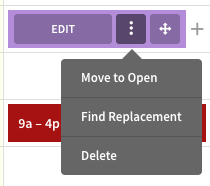
- Hover your cursor over the shift for which you need to find a replacement, click More button, then click Find Replacement.
- Select the users you’d like to be able to pick the shift up, then click Offer Shift. Only qualified users who aren’t already scheduled for a shift show as replacement options. If a user accepts the shift, it is automatically reassigned.
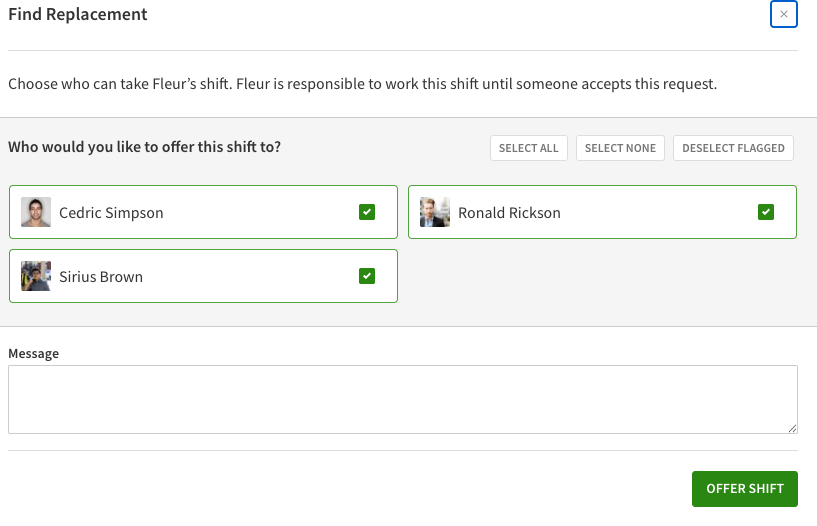 Users are sent an email letting them know the shift is available.
From the Dashboard
- Go to the Dashboard.
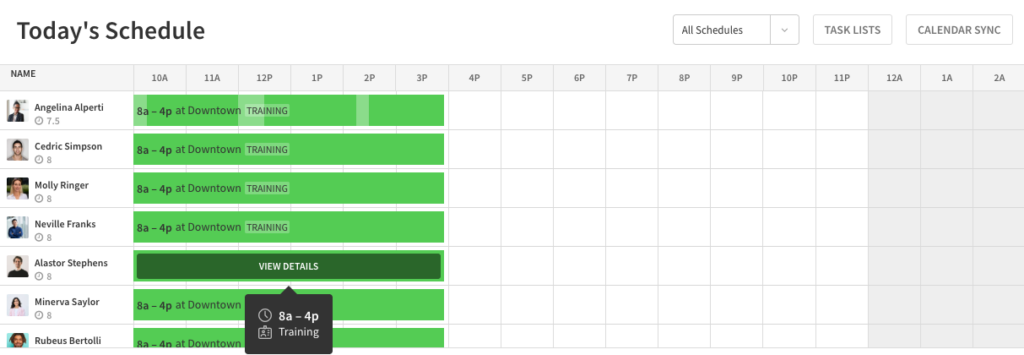
- In Today’s Schedule, click the shift for which you need to find a replacement.
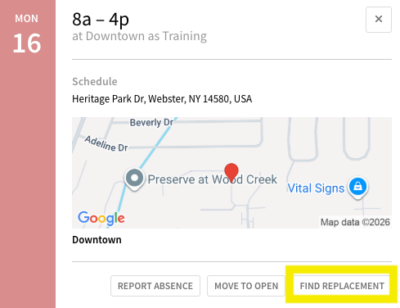
- Click Find Replacement.
- Select the users you’d like to be able to pick the shift up, then click Offer Shift.
NOTE: Only qualified users who aren’t already scheduled for a shift show as replacement options.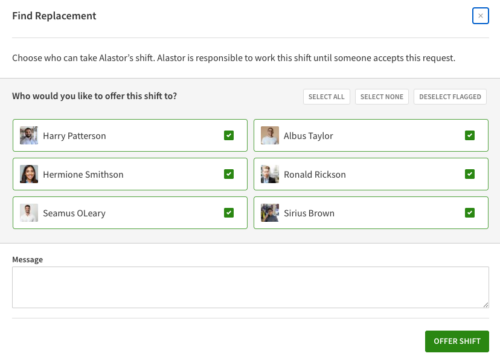 After initiating the replacement, users are sent an email letting them know the shift is available. If a user accepts the shift, it’s automatically reassigned.
In the Mobile Apps
**Note the steps are the same for both the Android and iOS mobile applications, however the images below are from the Android app.
- From the When I Work Scheduling app dashboard, tap Scheduler on the the bottom of the screen.
- Tap the shift that needs a replacement assignee.
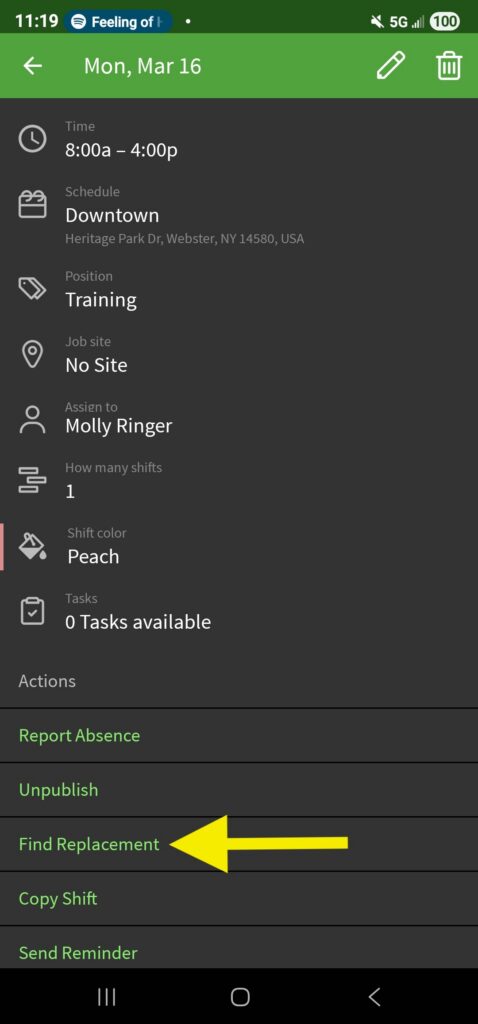
- In the details, tap on Find Replacement at the bottom of the screen.
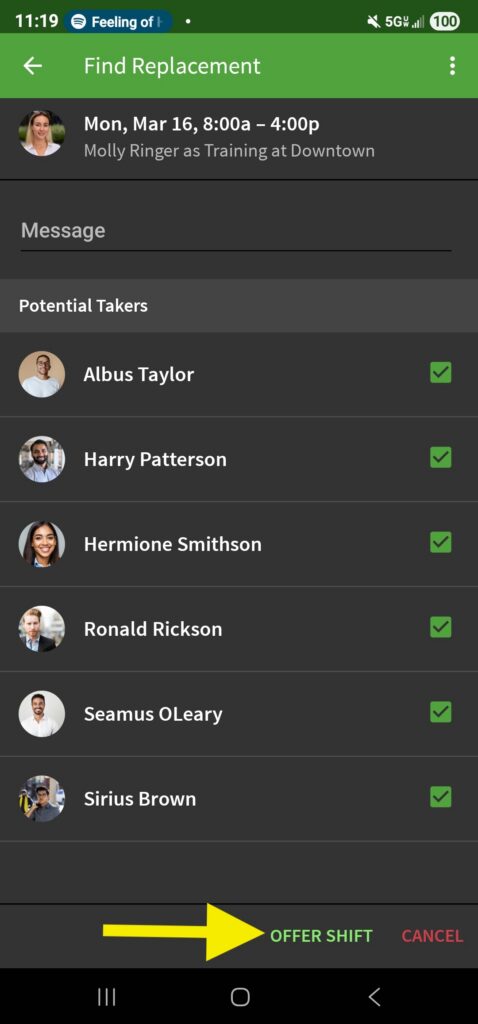
- You will see a list of potential takers of the shift. Select those you want to offer it to and then tap Offer Shift.
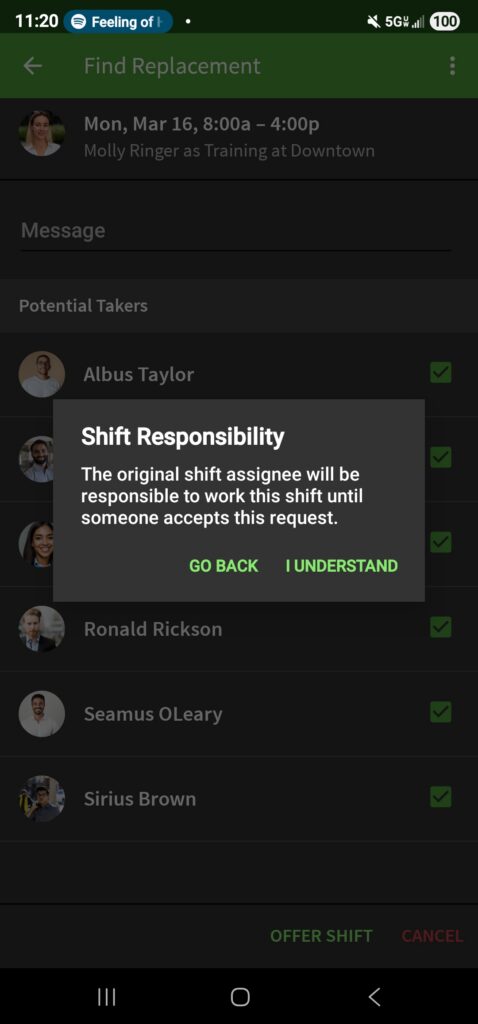
- The shift responsibility messages appears. Tap I Understand to proceed.
- Selected users will be notified of the available shift
- The first to accept the shift will be granted the shift and their schedule will automatically update