
Overview
Confirm your shifts to let your employer know that you’ve seen your shifts and you know they’re your responsibility.
Considerations
- Your employer has the option to require shift confirmation:
- If shift confirmation is required, you’re automatically prompted to confirm your shifts when you sign in. All users are prompted to confirm shifts regardless of their access privileges in the app.
- If shift confirmation is not required, you still have the option to confirm your shifts.
- Shifts that are highlighted in yellow on My Schedule view have not been confirmed.
Confirming all shifts when prompted
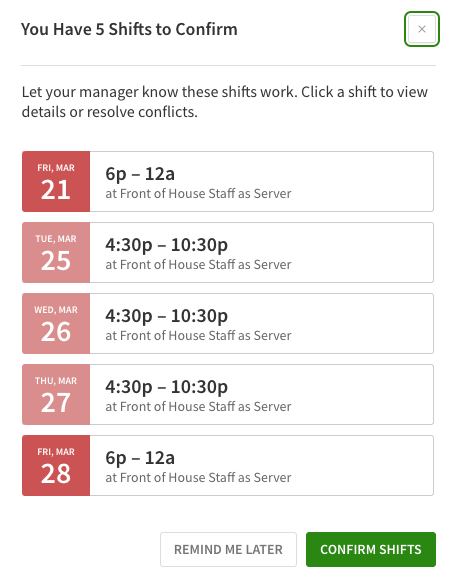
If your employer requires shift confirmation, the app prompts you to confirm new shifts (scheduled in the next two weeks) when you sign in or open the app.
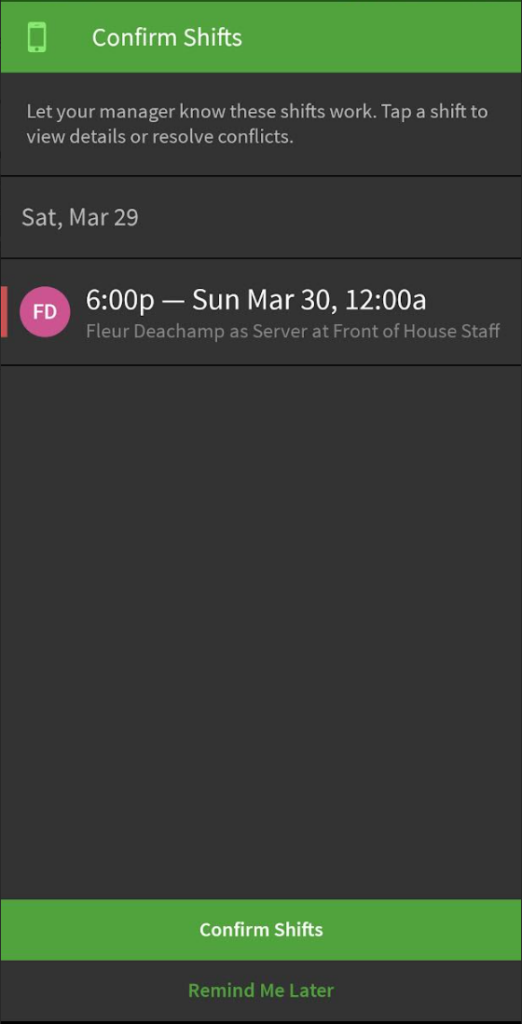
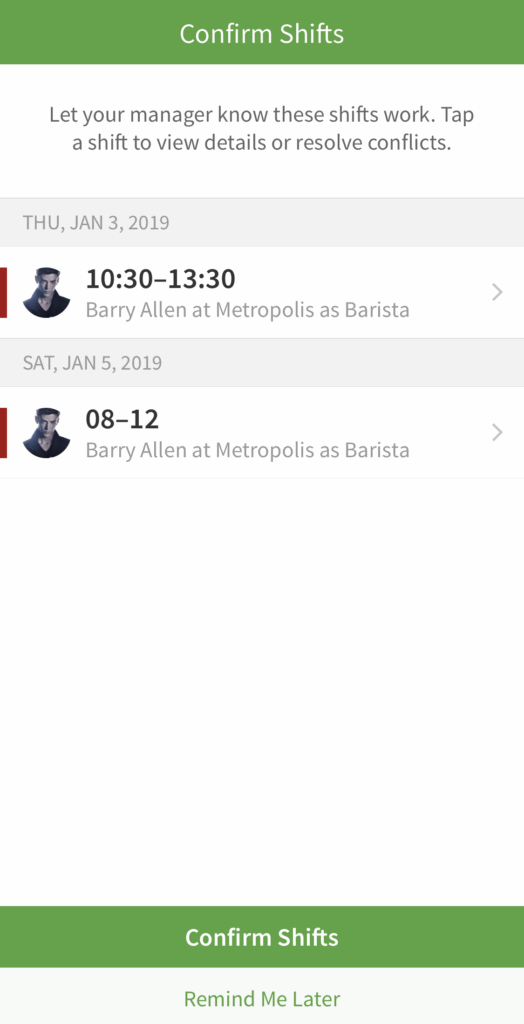
If all shifts work for you, click or tap Confirm Shifts at the bottom of the screen to let your employer know.
If you’d like to confirm your shifts later, click Remind Me Later. You will be prompted the next time you log into the app if there are any unconfirmed shifts.
Computer
Android
iOS Device
Confirming shifts one at a time
If your employer doesn’t require shift confirmation, or if you chose Remind Me Later when you were prompted to confirm your shifts, you have the option to confirm your shifts individually.
Computer
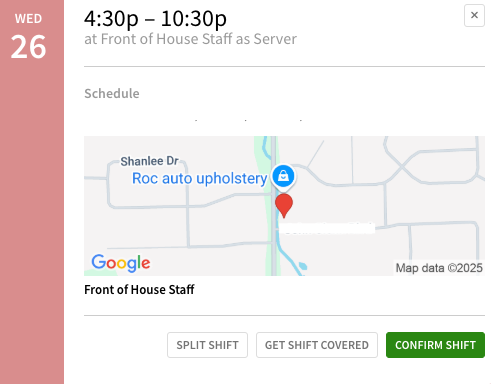
- In your schedule, click the shift that you want to confirm to open it’s details.
- Click Confirm Shift.
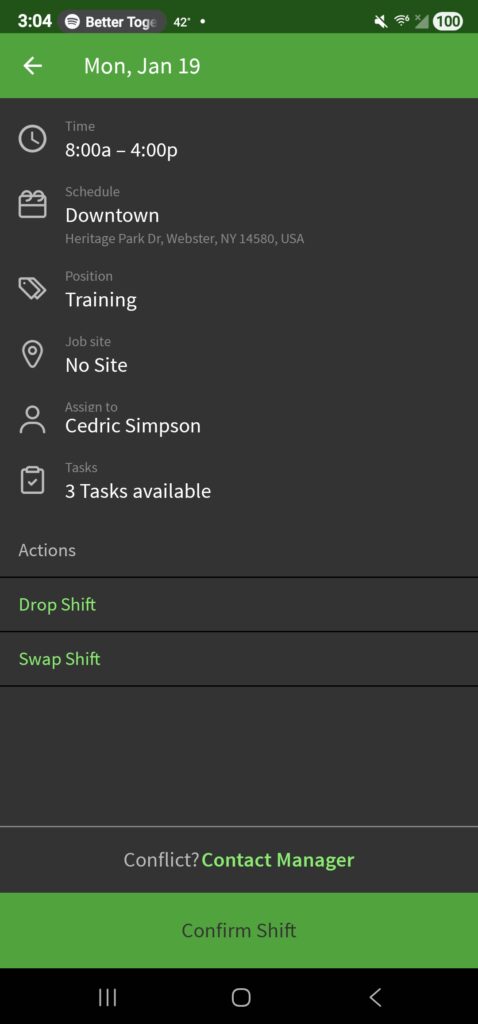
Android
- In your schedule, tap on the shift you want to confirm to open it’s details.
- Tap Confirm Shift at the bottom of the screen.
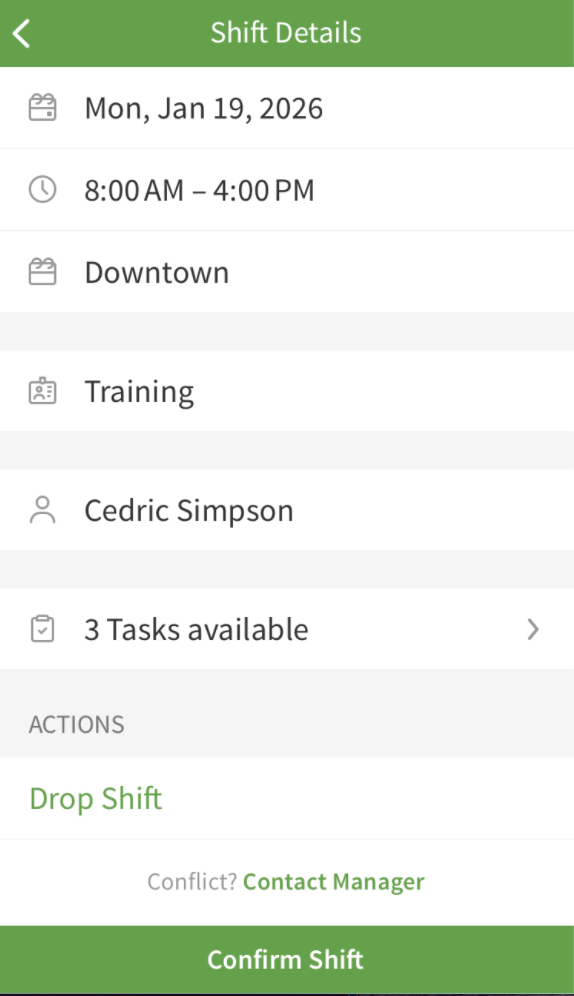
iOS Device
- In your schedule, tap on the shift you want to confirm to open it’s details.
- Tap Confirm Shift at the bottom of the screen.
Resolve a conflicting shift
If a shift doesn’t work for you, you may be able to start a swap or drop request (if your employer allows swaps and drops) to give the shift to one of your coworkers.
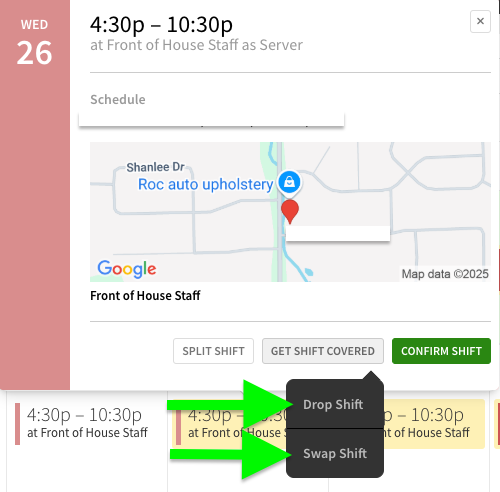
Computer
- Click the shift that doesn’t work for you.
- Click Get Shift Covered, and then choose a method from the options to resolve the conflict.
Android
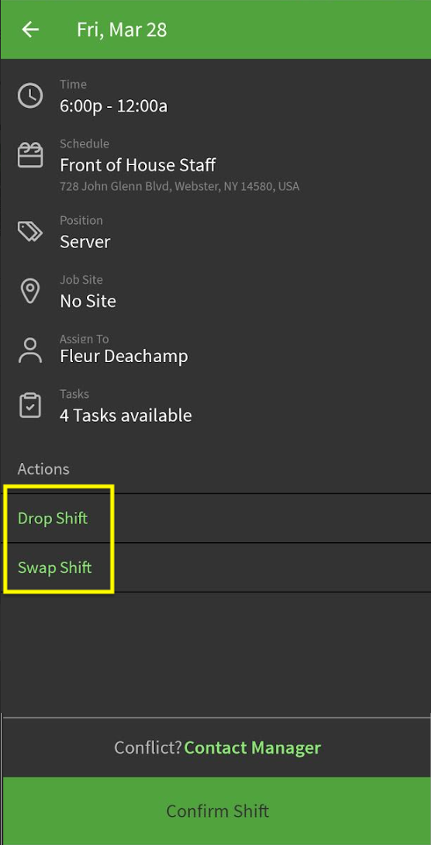
- Tap the shift that doesn’t work for you.
- Choose a method to resolve the conflict:
- Tapping Contact Manager will allow you to send your manager a message
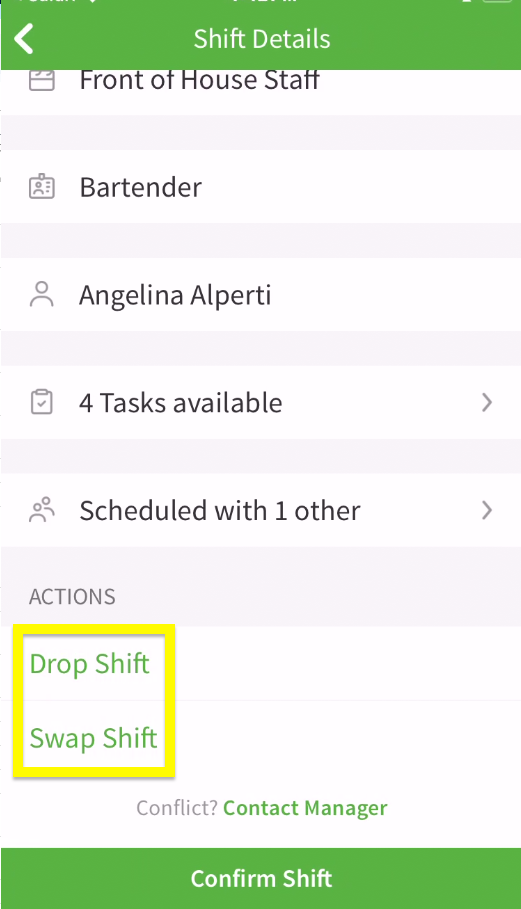
- Under Actions you will find options to get your shift covered.
iOS Device
- Tap the shift that doesn’t work for you.
- Choose a method to resolve the conflict:
- Tapping Contact Manager will allow to send your manager a message
- Under Actions you will find options to get your shift covered
Confirming your shift from My Schedule
When using a computer, you have the option to confirm you shifts directly from your My Schedule page. This is possible on the web app if your employer doesn’t require shift confirmation, or if you chose Remind Me Later when you were prompted to confirm your shifts.
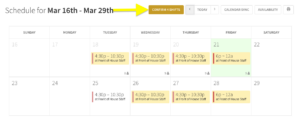
Shifts highlighted in yellow have not yet been confirmed. Click Confirm Shifts to confirm shifts for the two week period you’re viewing. Shifts turn white after you’ve confirm them and the Confirm Shifts button disappears.
If you have more shifts you’d like to acknowledge, use the and icons above your schedule to switch between weeks and click Confirm “#” Shifts for weeks where you have unacknowledged shifts.