Overview
Your employer can set up annotations to communicate important announcements about your workplace that can be viewed on the When I Work web and mobile apps.
Types of Annotations
Three types of annotations can be created.
| Type | Announcement |
| Description | General messages and workplace announcements. |
| Type | Time Off Not Allowed |
| Description | Indicates time off requests aren’t allowed on the selected days.* |
| Type | Business Closed |
| Description | Indicates the business is closed. |
| Type | Description |
| Announcement | General messages and workplace announcements. |
| Time Off Not Allowed | Indicates time off requests aren’t allowed on the selected days.* |
| Business Closed | Indicates the business is closed. |
* supervisors and managers can still submit time off requests on behalf of users.
Identifying Annotations
Annotations can be viewed several places within your When I Work profile.
| Type | Announcement |
| My Schedule | |
| Team Schedule | |
| Time Off Request | |
| Type | Time Off Not Allowed |
| My Schedule | |
| Team Schedule | |
| Time Off Request | |
| Type | Business Closed |
| My Schedule | |
| Team Schedule | |
| Time Off Request |
| Type | My Schedule | Team Schedule | Time Off Request |
| Announcement | |||
| Time Off Not Allowed | |||
| Business Closed |
Computer
My Schedule
As an Employee, click on My Schedule. If you are a Supervisor, Manager, or Admin user, click your profile in the top right corner and then select My Schedule.
Employee view: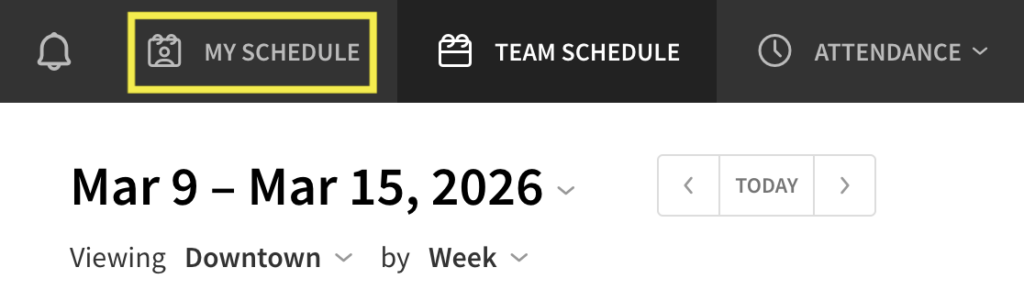
Supervisor, Manager, and Admin view: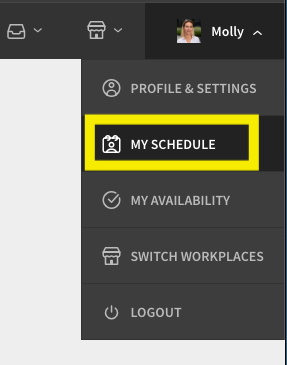
The annotation appears at the top of the page under Important Upcoming Date.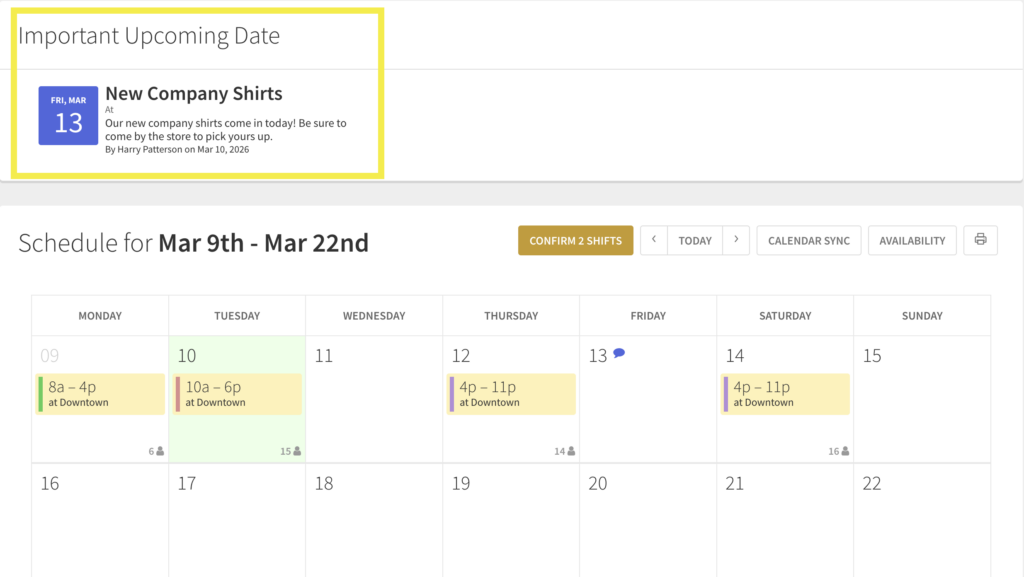
The date of the annotation is highlighted on your personal schedule. Hover over to view the announcement.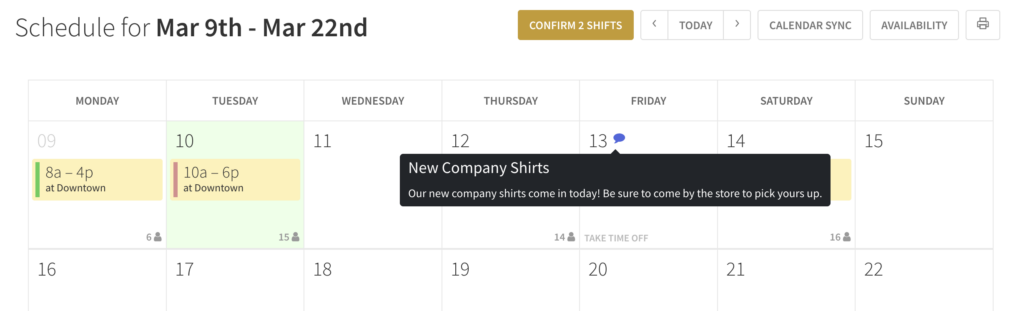
Team Schedule
As an Employee, click on Team Schedule at the top. As a Supervisor, Manager, or Admin user, click on Scheduler.
Employee view: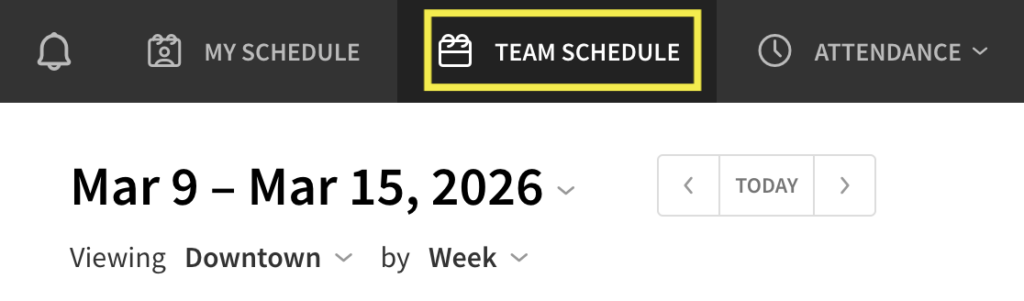
Supervisor, Manager, and Admin view: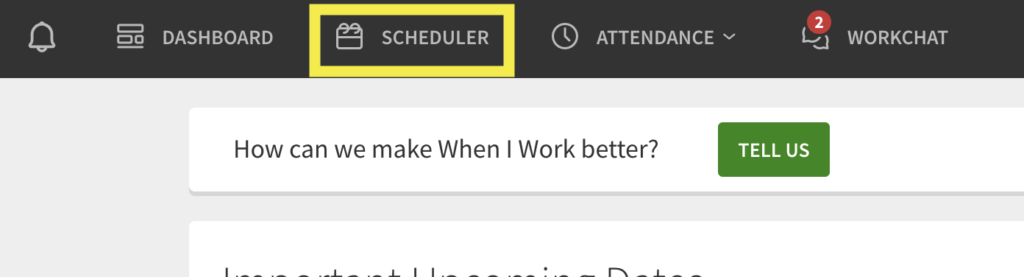
Hover over the highlighted date to view the annotation.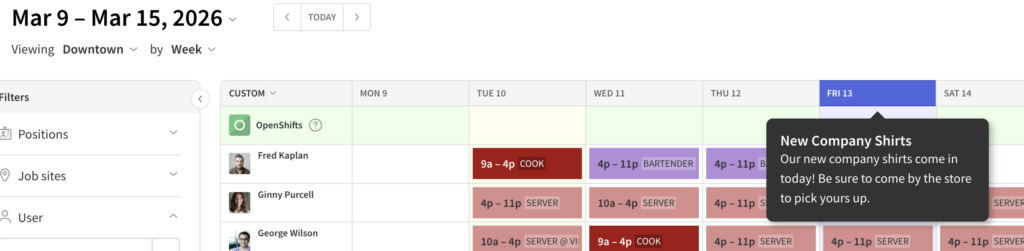
Time off request
If time off is blocked this is what Employees will see when requesting it.
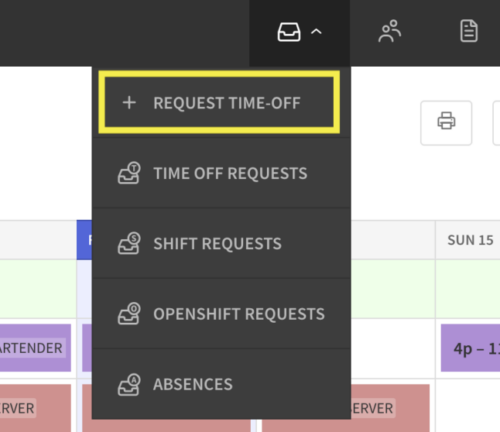
Hover over , then select Request Time Off.
Click Start Date. Dates with time off not allowed annotations are highlighted in red. Hover over the red date to see the details.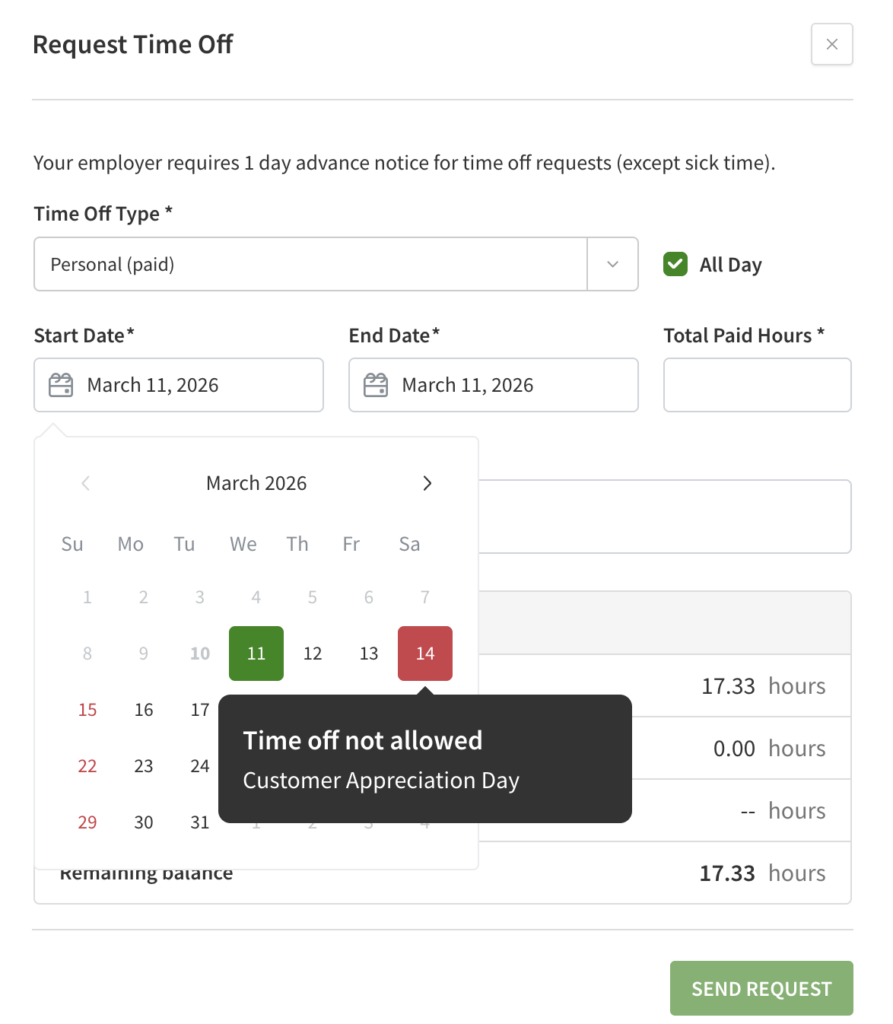
Android and iOS Apps
Note that the process is the same for both the Android and iOS application, but the images are from Android.
On the Dashboard, scroll to the Important Upcoming Dates card.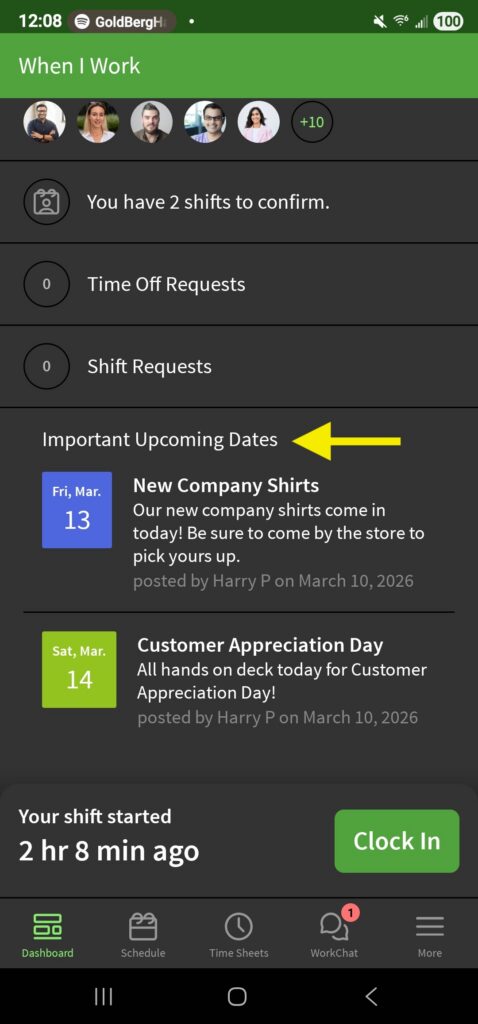
Tap the annotation to view details.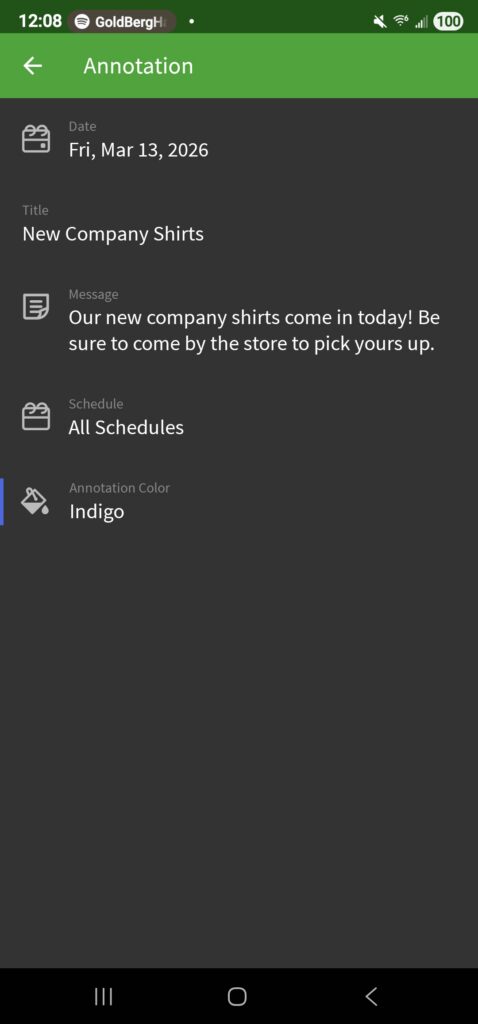
In the Schedule
At the bottom of the screen tap Schedule. Annotations appear under the My Shifts, All Shifts, and OpenShifts tabs on the date of the announcement. Tap the annotation to view details.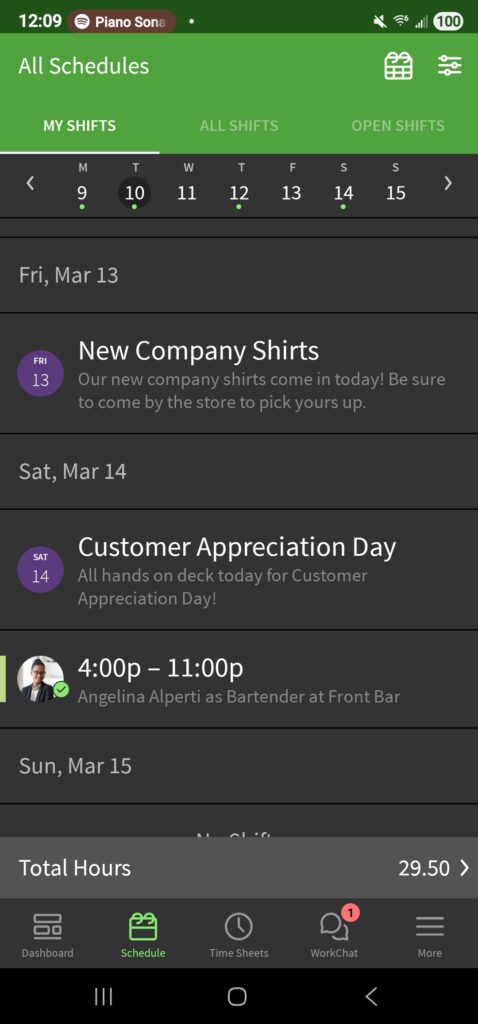
When Requesting Time Off
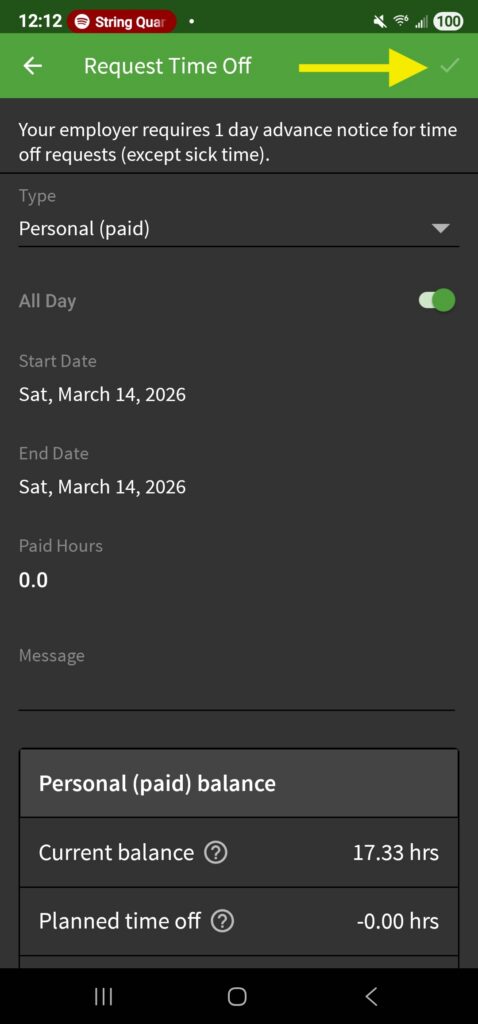
Initiate a time off request. See Requesting Time Off for steps. If time off is not allowed on the selected dates, you will not be able to submit the request and the icon will be grayed out. If you are using an iOS device, instead of a checkmark, the word Done will appear grayed out.