
Overview
Adding a profile picture will help your managers and coworkers recognize you in the app.
Considerations
The image you upload must be bigger than 128×128 pixels and no bigger than 500k in size.
Once an image has been uploaded, it cannot be removed in the mobile applications, only replaced. It can be deleted from the web application.
Add or change a profile picture
On a Computer
Profile & Settings

- Hover over your avatar and click .

- If a picture already exists, you will click the icon to edit and upload a new one
- Use the file browser on your computer to select a picture.
After you select the photo from the file browser, it appears in your profile.
Android
- From the When I Work Scheduling app select the More option on the bottom-right of the screen.
- Tap Profile & Settings.
- Tap the portrait silhouette or your existing profile picture to the right of your name.
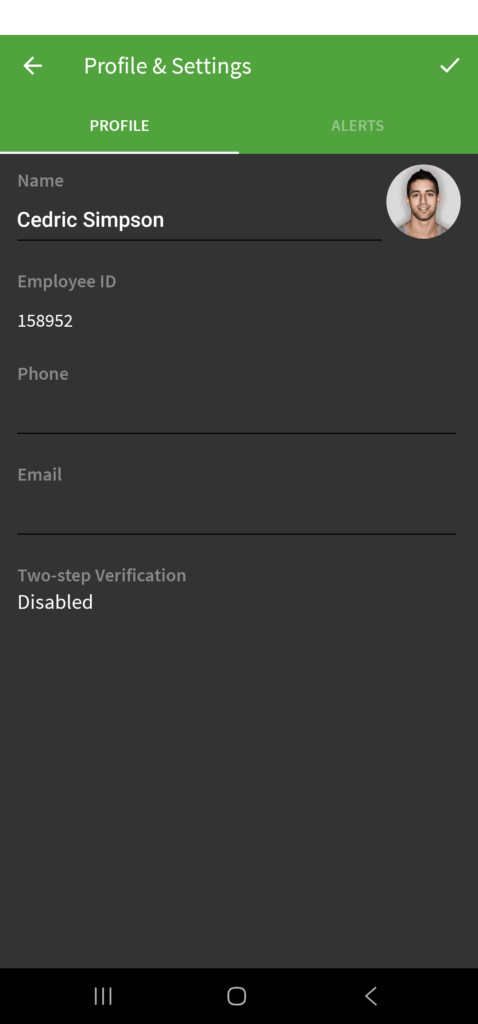 Grant permission if you’re prompted to allow the When I Work app access to your photos.
 - Select an image to use as your profile picture.
- Tap Checkmark button in the top-right corner of the screen.
iOS Device
- Tap More in the bottom-right corner of the screen.
- Tap Profile & Settings.
- Tap Edit in the top-right corner of the screen.
- Tap the blank silhouette or Change Photo.
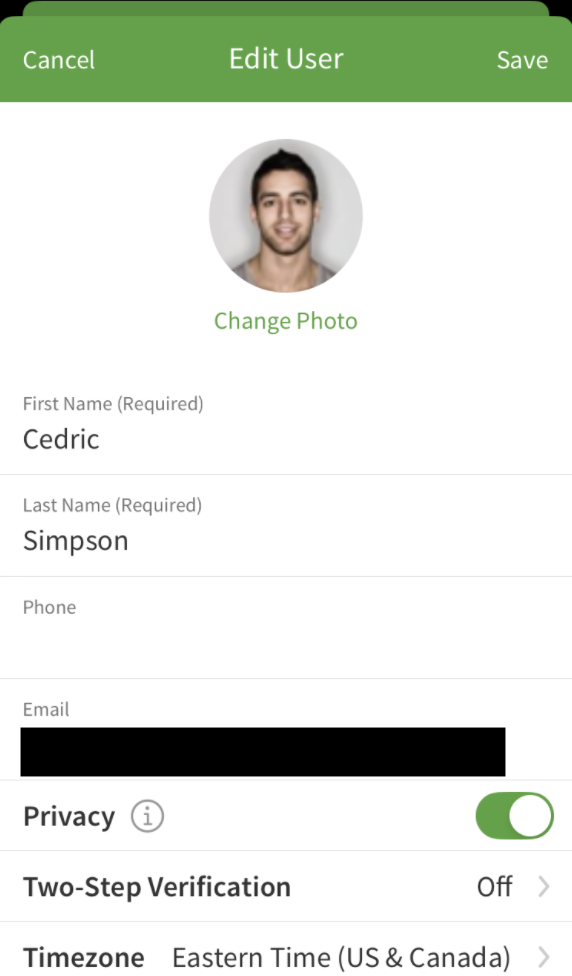 If you’re prompted to allow the When I Work app access to your photos, grant access.
 - Select an image to use as your profile picture.
- Tap Save in the top-right corner of the screen
Delete a profile picture
**Can only be done from a computer.
Profile & Settings
- Hover over your avatar and click .
 A confirmation screen appears.
 - Click Delete to confirm.
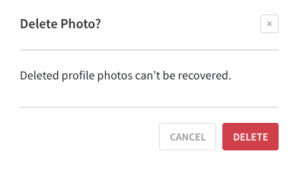 Your profile picture is removed from your profile.