
Overview
Exporting timesheets allows you to download a spreadsheet containing timesheet information. You can export timesheets for a pay period, or for a custom date range outside of your pay periods. Timesheet exports contain raw time entries and totals.
Considerations
- You must have supervisor, manager, or admin access privileges to export employees’ timesheets.
- Employees can only export their own timesheets for individual pay periods.
- Customized exports allow you to download up to three months of timesheet data at a time.
As a Pay Period Summary
Hover over Attendance, then select Timesheets.
- In the top-left corner, under Pay Periods, click Down arrow button
to select the pay period from which you’d like to export time sheets.
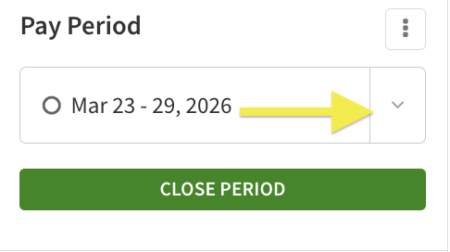
- Click to Close Period if you haven’t already.
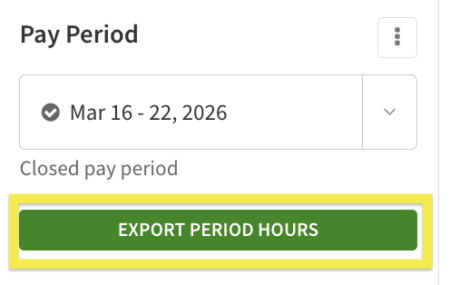
- Click Export Period Hours and then download the excel file to your computer.
For all users
- In the timesheets, select the pay period you want data for.
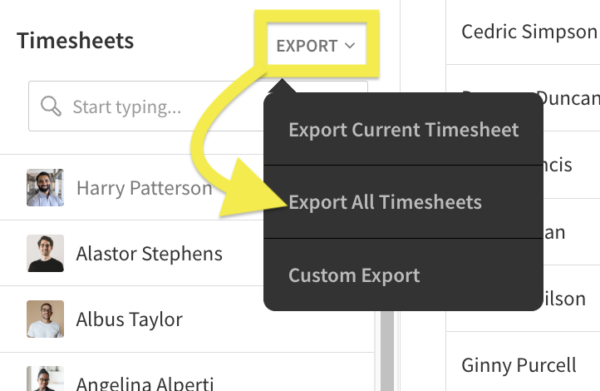
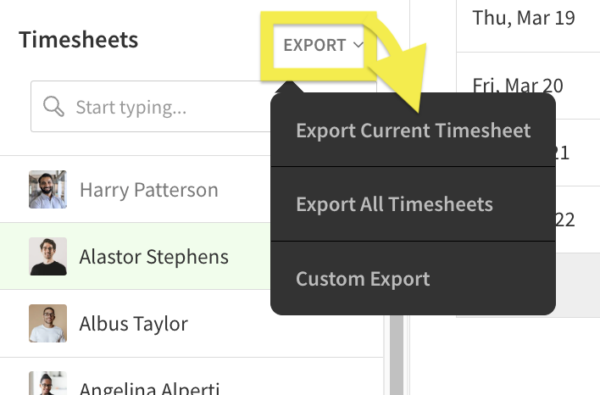
- On the left side of the screen next to Timesheets, click Export.
- Select Export All Timesheets and the file downloads to your computer.
For an individual user
- In the timesheets, select the pay period you want data for.
- Click on an employee’s name within the Timesheets section below the selected pay period.
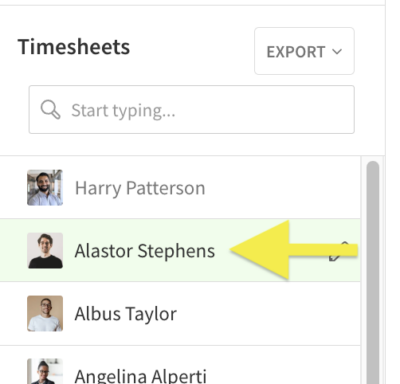
- On the left side of the screen next to Timesheets, click Export.
- Select Export Current Timesheet and the file downloads to your computer.
Exporting custom timesheet data
Custom timesheet exports allow you to configure your export for specific date ranges and narrow it down based on schedules, job sites, positions, and employees.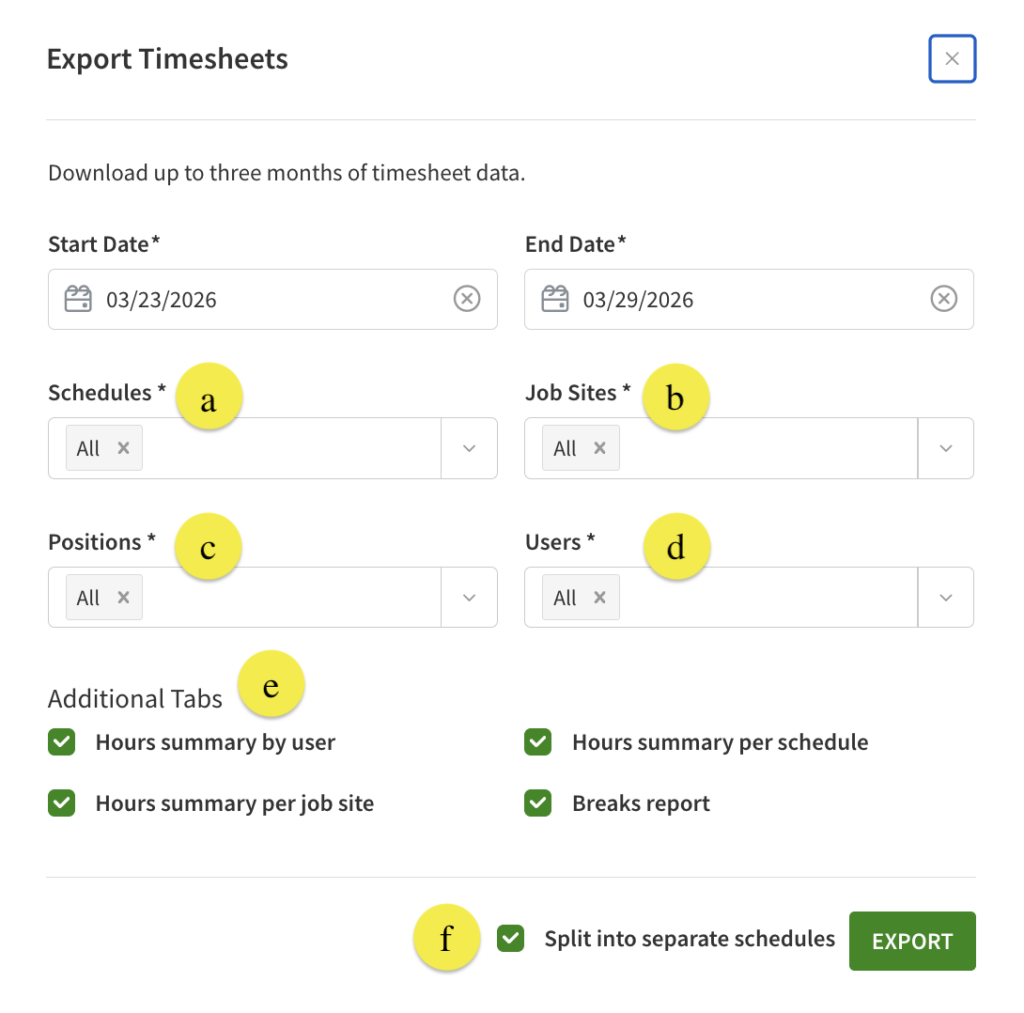
| Callout |
| Description |
| a |
| Use the Schedules dropdown to select specific schedules to include on the export |
| b |
| Use the Job Sites dropdown to select specific job sites to include on the export |
| c |
| Use the Positions dropdown to select specific positions to include on the export |
| d |
| Use the Users dropdown to select specific users to include on the export |
| e |
| You can adjust the tabs that appear in the custom timesheet export. Unchecking the box next to an additional tab will omit this tab from the export. |
| f |
| Unchecking the separate schedules box will group all timesheet entries into a single export instead of separating them out by schedule in different tabs. |
| Callout | Description |
| a | Use the Schedules dropdown to select specific schedules to include on the export |
| b | Use the Job Sites dropdown to select specific job sites to include on the export |
| c | Use the Positions dropdown to select specific positions to include on the export |
| d | Use the Users dropdown to select specific users to include on the export |
| e | You can adjust the tabs that appear in the custom timesheet export. Unchecking the box next to an additional tab will omit this tab from the export. |
| f | Unchecking the separate schedules box will group all timesheet entries into a single export instead of separating them out by schedule in different tabs. |
** These fields can be combined to narrow down to exactly the data you need included on the export.
Frequently Asked Questions
What information is included in this export?
The timesheet exports include the following information: first name, last name, employee ID, date, start time, end time, paid rest breaks, unpaid meal breaks, regular hours, hourly rate, overtime, double overtime, paid total, schedule, job site, position, manager notes, clock in notes, and clock out notes.
How do I view worked hours for an archived user?
If you need to access timesheet information after an user’s profile is archived, you can create a custom timesheet export with the Users field set to All. This will include archived user records in the export for the time frame selected.