Overview
Easily review unpaid lunch breaks and paid rest breaks in the timesheet export. After exporting timesheets, use the Breaks tab in the export to see details of your user’s breaks.
Considerations
- Make sure the Breaks option is enabled in the account’s Attendance Settings.
- Checking the box for ‘Let users record unpaid breaks’ and/or ‘Ask users about paid rest breaks’ adds the Breaks tab to the timesheet exports.
- Automatically deducted and manually entered breaks do not appear on the breaks tab.
Reviewing breaks
To review breaks, export timesheets then click the Breaks tab at the bottom of the export. 
For more information on how to export timesheets check out Exporting Timesheets.
When viewing the breaks tab, sections are separated by employee indicated by the grey background on their main shift line. Each line below is the break(s) that were taken by that user. 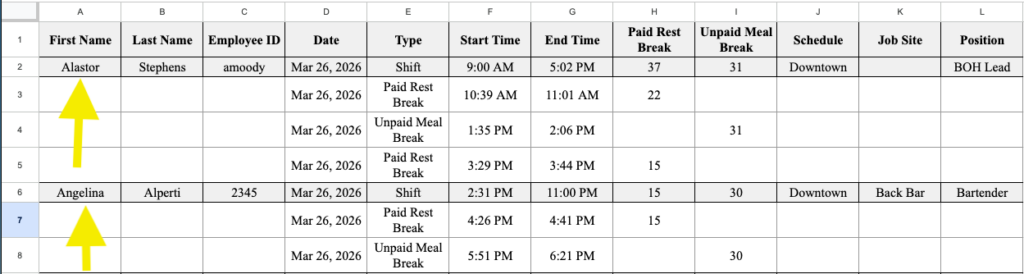
Unpaid meal breaks
If a user took an unpaid lunch break, the start time, end time, and number of minutes taken is recorded along with a total number of minutes at the top of that column.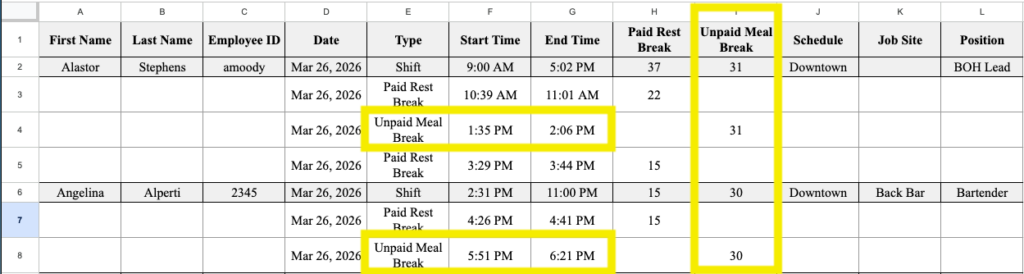
Paid rest breaks
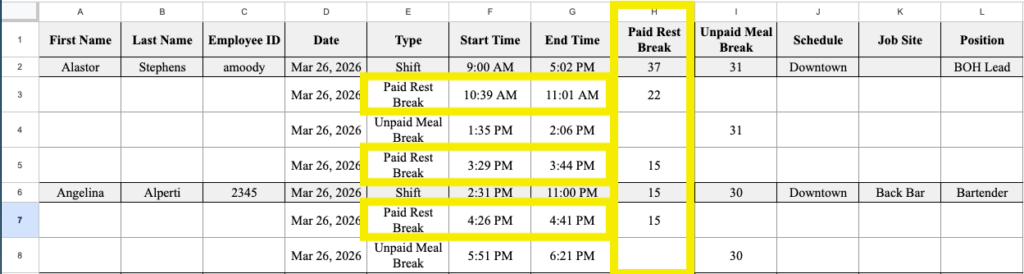
If a user took a paid rest break, the start time, end time, and number of minutes taken for each break is recorded along with a total number of minutes at the top of that column.