
Overview
When users bid on OpenShifts, use the When I Work web app to process OpenShift requests from your computer.
Considerations
- You must have supervisor, manager, or admin access privileges to process employee requests. If you’re a supervisor, you can only process requests for employees that belong to your schedules.
- All requests have a status. Learn more about the different statuses at the bottom of this article.
How do I know when requests need my attention?
When a request needs your attention:
- We’ll send you an email and/or a mobile alert based on your alert preferences.
- The in the top-left corner of the When I Work web app shows a count badge. Click for more information.

Processing Requests on a Computer
You can process OpenShift requests on the OpenShifts requests page.
Hover over , then select OpenShift Requests.
- Find the OpenShift request.
- Click Requests I Can Approve or All Requests.
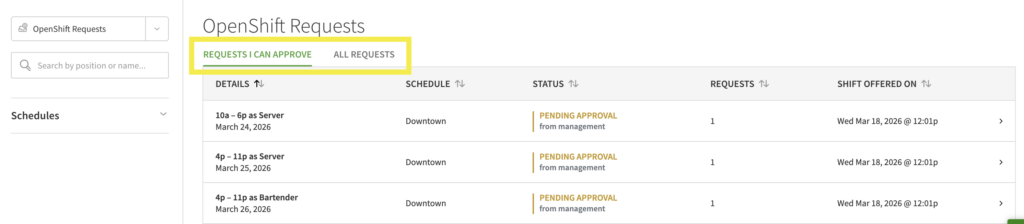
- Requests I Can Approve: Requests that are Pending Approval that you can act on, excluding your personal requests.
- All Requests: Your personal requests and requests from others all in one place.
- Search for a request or filter requests by Status and Schedule in the left sidebar.

- Click Requests I Can Approve or All Requests.
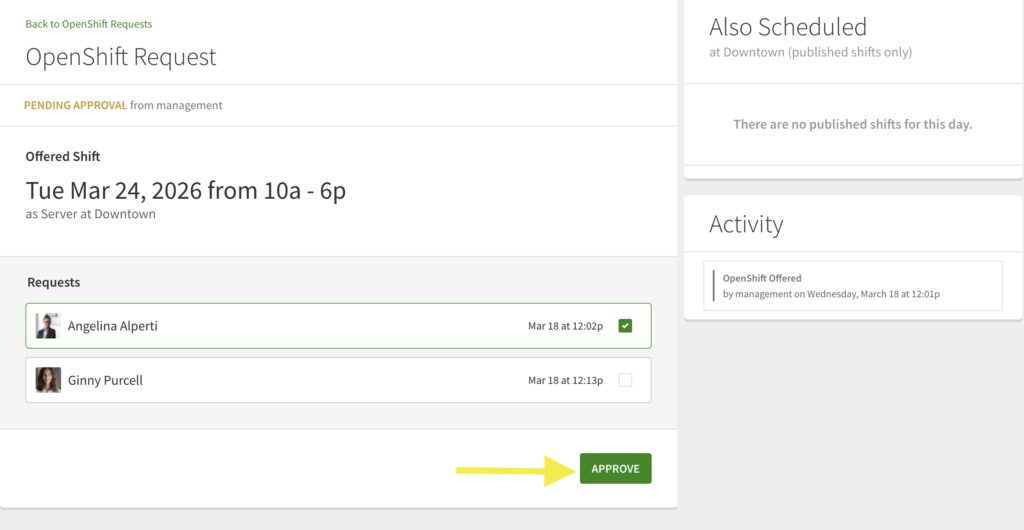
- Click the OpenShift request that you want to process.
- Select a user to work the OpenShift. Users appear in order of the date the OpenShift was requested on.
NOTE: If overlapping OpenShift pick-up is enabled in the Scheduling Settings, users who are able to take the full OpenShift appear first. Overlapping takers are initially hidden. Click +n requestors can take part of the shift to see partial requestors. - Click Approve to assign the OpenShift.
On the Mobile Applications
The steps are the same on both Android and iOS devices, however the images below are from the Android application.
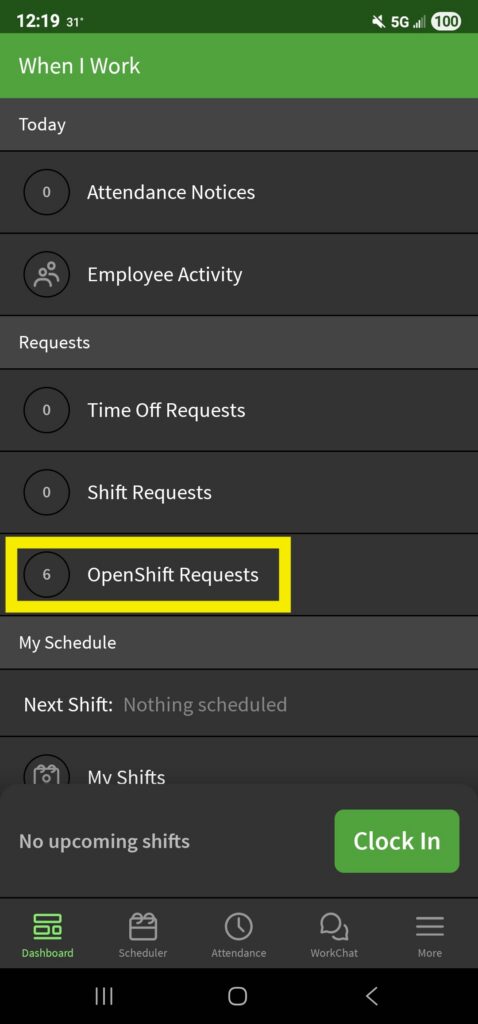
- From the When I Work Scheduling app, tap the OpenShift Requests dashboard card.
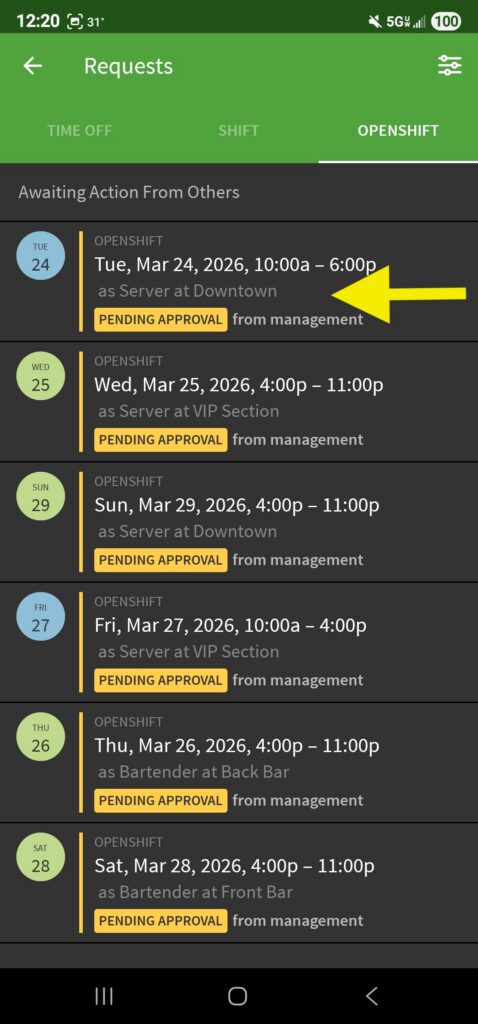
- Tap the OpenShift request you want to process.
- Requests that require your approval are automatically moved to the top of the list.
- Requests with a Pending Approval notification need action from a supervisor, manager, or admin.
- Select a user to work then tap Approve to assign the OpenShift.
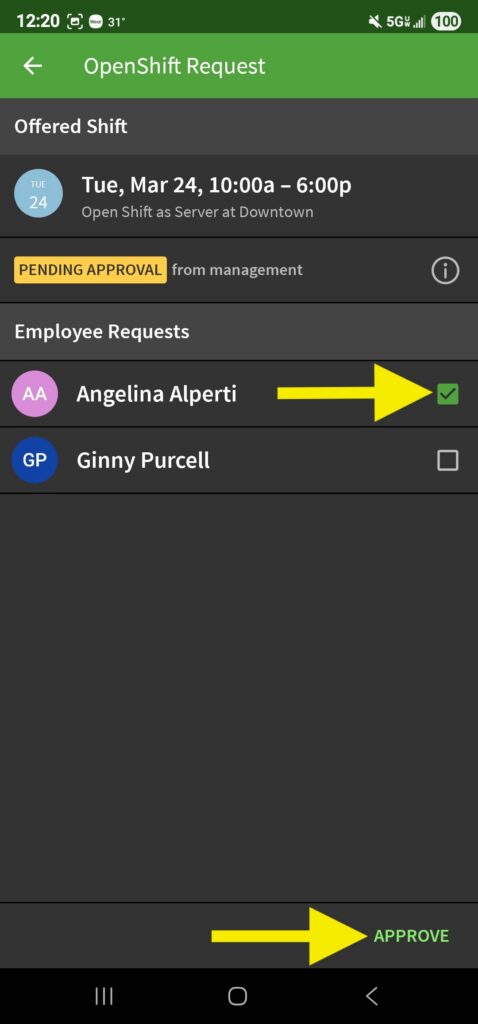
- Users appear in order of the date the OpenShift was requested on.
NOTE: If overlapping OpenShift pick-up is enabled in the Scheduling Settings, users who are able to take the full OpenShift appear first. Overlapping takers are initially hidden. Click +n Partial Takers to see partial requestors
- Users appear in order of the date the OpenShift was requested on.
OpenShift request statuses
| Status | Pending Approval |
| Description | The request is waiting for approval from management. |
| Status | Approved |
| Description | The request has been approved by management. |
| Status | Canceled |
| Description | The manager or the user that created the request has canceled the request. |
| Status | Expired |
| Description | The specific day regarding the request has passed; no one approved in time. |
| Status | Denied |
| Description | The request was not approved. This status only appears for users that were not approved to work the OpenShift. |
| Status | Description |
| Pending Approval | The request is waiting for approval from management. |
| Approved | The request has been approved by management. |
| Canceled | The manager or the user that created the request has canceled the request. |
| Expired | The specific day regarding the request has passed; no one approved in time. |
| Denied | The request was not approved. This status only appears for users that were not approved to work the OpenShift. |