
Overview
When I Work’s time zone settings determine how schedules and time entries are viewed and created. If you have users across different time zones, setting time zones allows users to view shift times and timesheet entires in their local time.
Considerations
- You must have admin level access to adjust the workplace time zone in the General Settings.
- Any user can adjust their own personal time zone settings in their profile
- Start of day, start of workweek, and start of pay period are all set in the workplace’s time zone
- For example, if the account time zone is (GMT-5) Central Time (US & Canada) and the user is in (GMT-4) Eastern Time (US & Canada), they will see the time of a single day run 1a – 1a instead of 12a – 12a like those in the matching account time zone will.
Set the workplace time zone
**Only an Admin or Manager user can set or change the workplace time zone.
The workplace’s default time zone is based on the Admin’s location when the workplace account is created.
Hover over , then select General Settings.
- From the Time Zone menu, select the time zone for the workplace.

- Click Save in the top-right corner of the screen.
Set a custom time zone
For your own profile
Any user can set their own custom time zone in their profile using a computer or an iOS device.
Computer
- Hover over your name, then select Profile & Settings.

- From the Timezone menu, select the time zone you’d like to set for your personal profile.
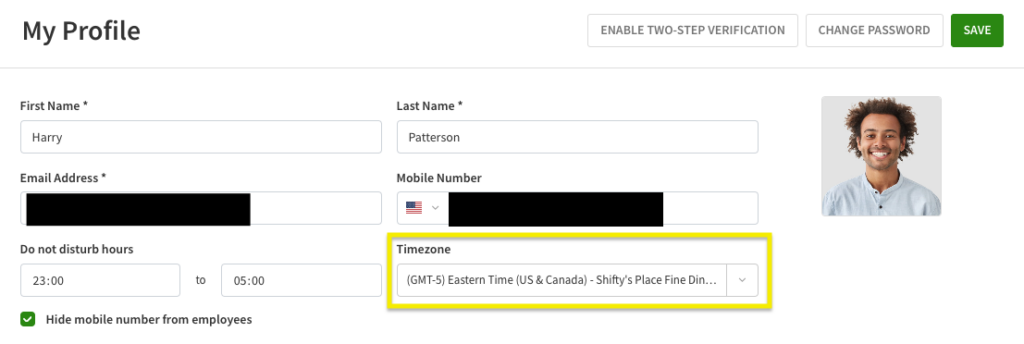
- Click Save in the top-right corner of the screen.
Shifts and time entries are now converted to your profile’s time zone.
iOS Device
- From the When I Work Staff Scheduling app, tap More in the bottom-right corner of the screen.
- Tap Profile Settings.
- In the top-right corner of the screen, tap Edit.

- Tap Time Zone.
- Scroll or tap to find your time zone. When you’ve found your time zone, tap to select.

- Tap Save in the top-right corner of the screen when you’re finished.
For another user
If you have a user in another time zone, admins, managers, and supervisors can set a custom time zone on behalf of a user to translate their shift times to their time zone.
Hover over , then select Users.
- Click to the right of the user’s name.
The Edit User window appears. - Click the Advanced Details tab.
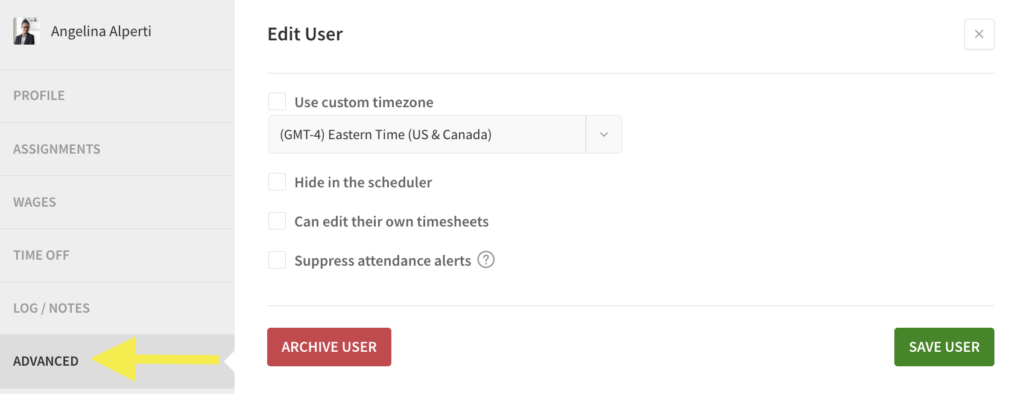
- Check Use Custom Time Zone.
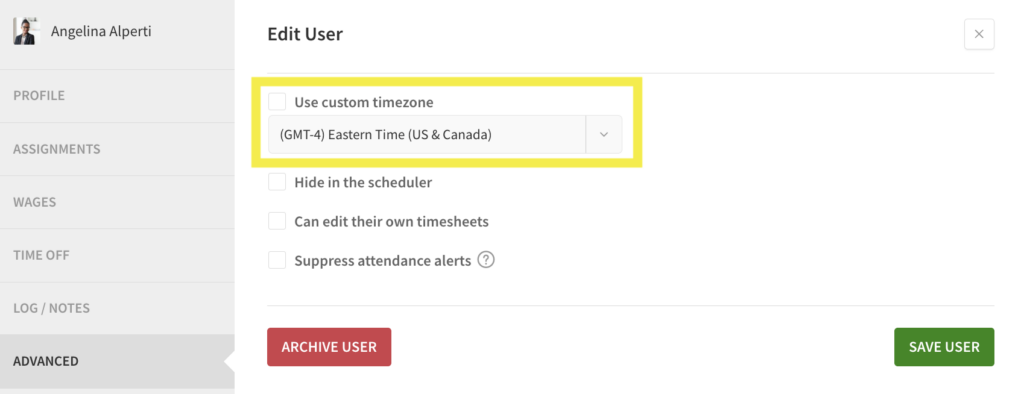
- Use the menu to select the user’s local time zone.
- Click Save User.
Shifts and time entries are now converted to the user’s custom time zone.
Switch time zones in the Scheduler
The time zone menu in the Scheduler allows users to view and work with shifts across different time zones. The time zone menu appears in the Scheduler if the time zone in your profile does not match the workplace time zone or if it does not match the schedule time zone.
Click below the date(s) in the top-left corner to select a time zone view.

- Your timezone: view the Scheduler in the time zone set in your personal profile.
- Schedule timezone: view the Scheduler in the time zone that 75% or more of the users assigned to that schedule have set in their profile.
- Account timezone: view the Scheduler in the time zone set for the workplace account in the General Settings.
NOTE: Users with a custom time zone set in their profile will be able to view the team schedule in their time zone or the account time zone.
Example Scenarios
The following section outlines examples of how to configure time zone settings for common scenarios as well as how to view the Scheduler in your user’s time zones.
The time zone settings are defined as:
- Workplace time zone: The time zone set for the entire workplace account in the General Settings.
- Custom time zones for users: The custom time zone set on the user’s behalf by a Supervisor, Manager or Admin in the Advanced Details section of their User profile.
- Custom time zone for your profile: The custom time zone set in your personal profile.
Example #1: You manage a large workplace with teams of users across multiple different time zones.
Time Zone Settings:
- Workplace time zone: Set the workplace time zone to match the time zone of your scheduling users or of your workplace’s headquarters.
- Custom time zones for users: Set user’s profiles to their local time zone.
- Custom time zone for your profile: Set your personal profile to your local time zone.
Viewing the Scheduler:
Create multiple Schedules; one Schedule for each team, region, or time zone. For more information see Making Separate Schedules. Assign user’s to the Schedule in which they work. See Assigning Users to Positions and Schedules.
To view the Scheduler in a different time zone, adjust the time zone menu on the Scheduler page.
Example #2: You schedule for a small remote team. All of your users are in different time zones but you also want to see all of your users on one Schedule to ensure proper coverage.
Time Zone Settings:
- Workplace time zone: Set the workplace time zone to match the time zone of your scheduling users or of your workplace’s headquarters.
- Custom time zones for users: Set user’s profiles to their local time zone.
- Custom time zone for your profile: Set your personal profile to your local time zone.
Viewing the Scheduler:
Assign user’s to a single Schedule. See Assigning Users to Positions and Schedules.
To view the Scheduler in a different time zone, adjust the custom time zone in your personal profile.
Example #3: You are located in the Eastern Standard Time but you schedule for users in Pacific Standard Time.
Time Zone Settings:
- Workplace time zone: Set the workplace time zone to match the time zone of the majority of your users. In this example, Pacific Standard Time.
- Custom time zones for users: No custom time zone will need to be set in user profiles. As new profiles are created, user’s time zones are automatically set to the workplace time zone.
- Custom time zone for your profile: Set your personal profile to your local time zone.
Viewing the Scheduler:
To view the Scheduler in a different time zone, adjust the time zone menu on the Scheduler page.
Example #4: You schedule for yourself and your team in Central Standard Time but you have a few remote users in Mountain Standard Time and in Pacific Standard Time.
Time Zone Settings:
- Workplace time zone: Set the workplace time zone to match the time zone of your scheduling users or of your workplace’s headquarters. In this example, Central Standard Time.
- Custom time zones for users: Set remote user’s profiles to their local time zone.
- Custom time zone for your profile: Set your personal profile to your local time zone.
Viewing the Scheduler:
Assign user’s to a single Schedule. See Assigning Users to Positions and Schedules.
To view the Scheduler in a different time zone, adjust the custom time zone in your personal profile.