
Overview
If your users are listed on your Users page but do not display in the scheduler, use this guide to find the possible cause and the solution that will get you back to scheduling.
Considerations
You must have admin or manager access privileges to perform some troubleshooting steps in this article.
Below are some of the causes and solutions if you run into this situation.
Users are not assigned to the schedule
Solution: Assign users to the schedules they can work.
Users need to be assigned to the schedules on which they should appear. Follow our instructions on assigning users to schedules.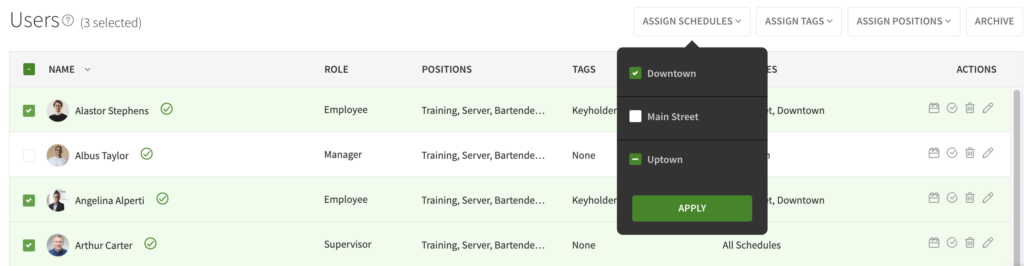
User is hidden in the scheduler
If you check their assignments and they are assigned to the schedule you are viewing, there may be another cause for them to not appear. Here are some tips to check in the Scheduler:
- Check the display options to see if you have unscheduled users hidden or the option to hide filtered users. (This option will hide multiple users from the schedule when checked.)
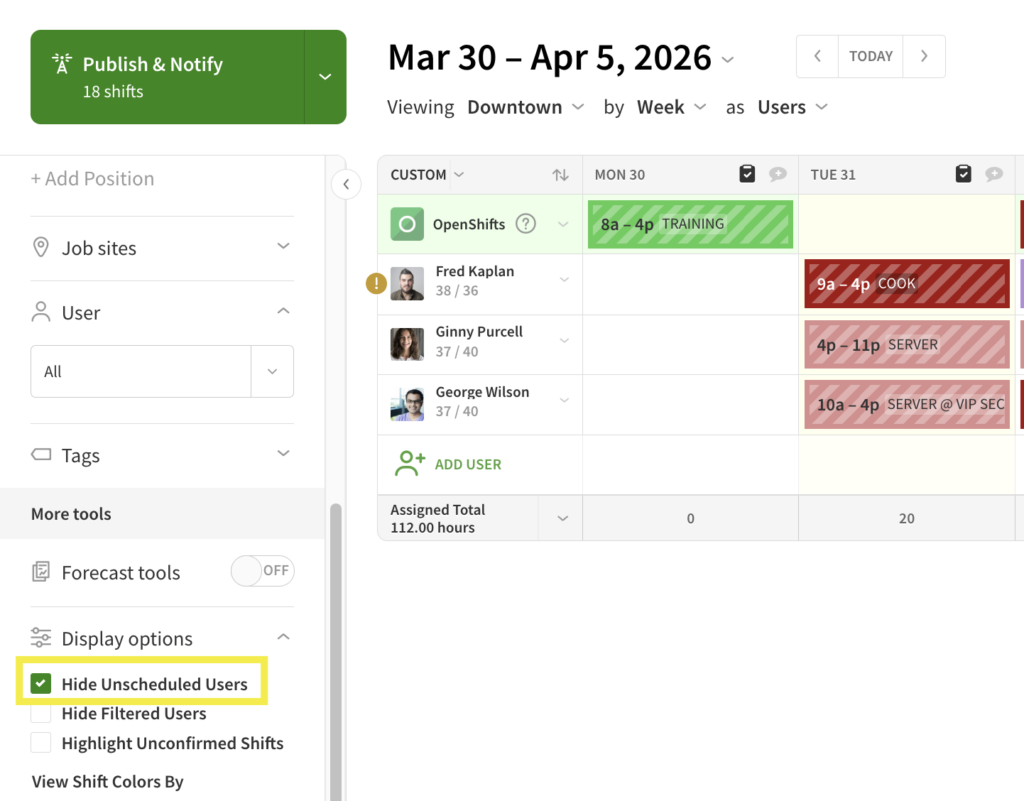
- If this is on, uncheck the box to display everyone assigned to this schedule.
- If your are missing an individual, check their user profile to see if they are marked to be hidden in the scheduler. (This hides the user in the scheduler when they have no scheduled shifts.)
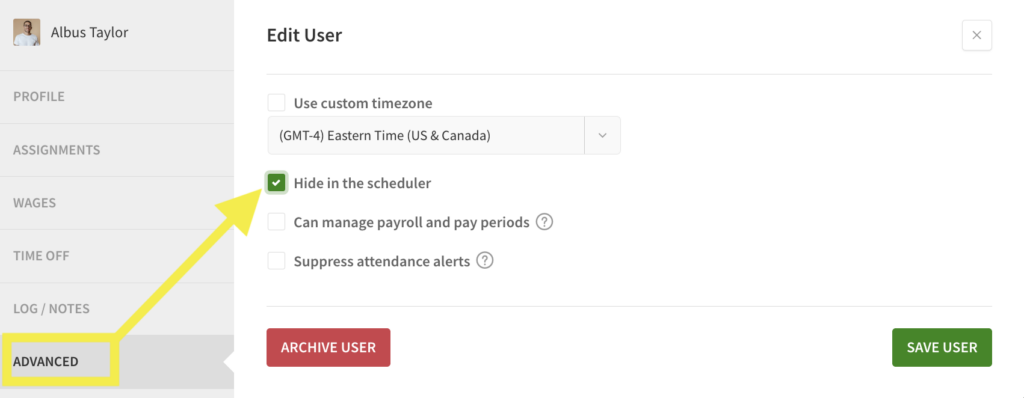
- Unchecking this box in a user profile will allow the user to be visible on the schedule even when they do not have a shift.
- Check the filters to see if you have a specific position selected when the hide filtered users option is also checked. (This would hide users that don’t carry that specific position.)
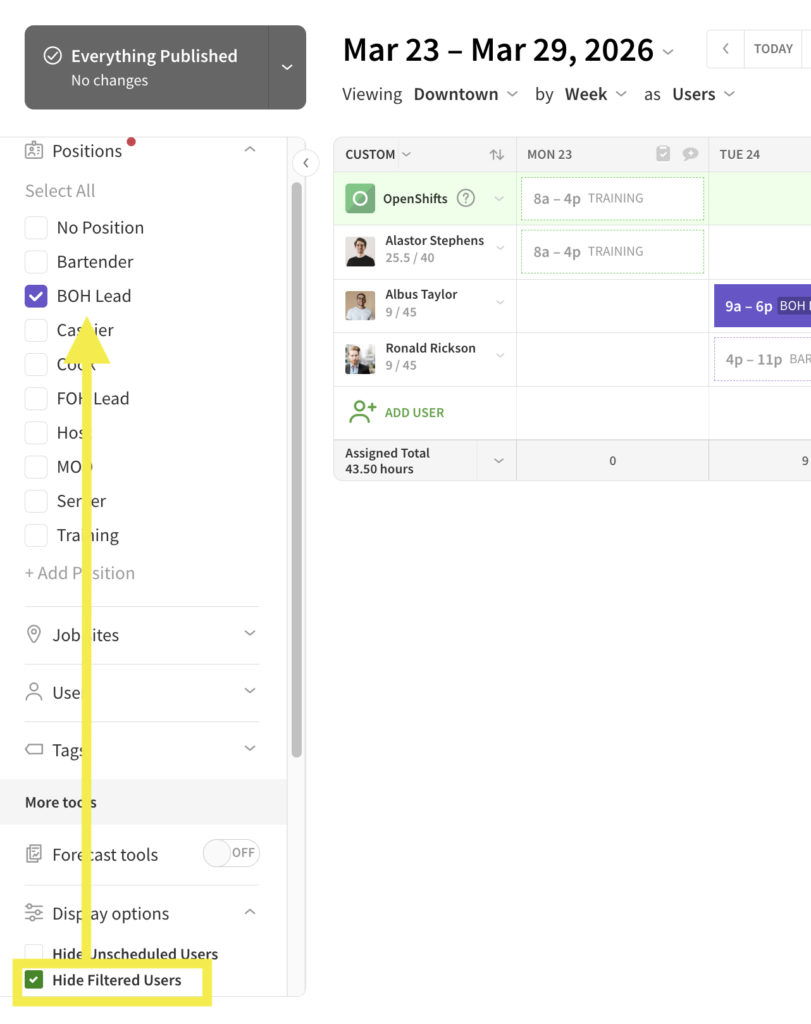
- Unchecking the “Hide Filtered Users” option or clicking Select All in the filter window will allow all users to be visible again.