
Overview
Your personal profile in When I Work allows you to change your password, set a profile image, set your personal information, and configure your preferences.
Updates from a Computer
Accessing your profile
Profile & Settings

Once in the Profile & Settings, you will be able to edit your details: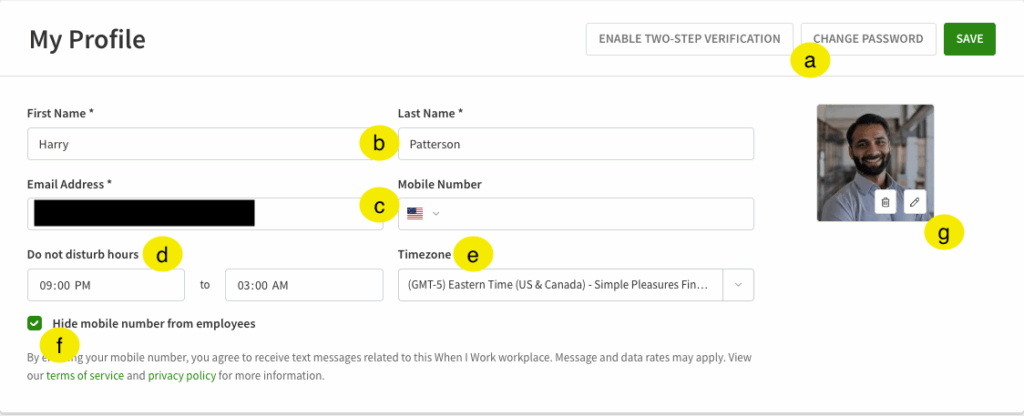
| Callout |
| Field/button |
| Description |
| a |
| Change Password |
| Use this to reset your password |
| b |
| First/Last Name |
| Change your first and last name |
| c |
| Email Address/Mobile Number |
| Update your contact information |
| d |
| Do not disturb hours |
| Turn off SMS notifications during specific periods of time* |
| e |
| Timezone |
| Set the timezone to your local if you work in one different from your employer |
| f |
| Privacy setting |
| Hides your contact information from your coworkers. See Privacy Settings. |
| g |
| Profile Picture |
| Add, change, or delete your profile picture here. See Manage your profile picture. |
| Callout | Field/button | Description |
| a | Change Password | Use this to reset your password |
| b | First/Last Name | Change your first and last name |
| c | Email Address/Mobile Number | Update your contact information |
| d | Do not disturb hours | Turn off SMS notifications during specific periods of time* |
| e | Timezone | Set the timezone to your local if you work in one different from your employer |
| f | Privacy setting | Hides your contact information from your coworkers. See Privacy Settings. |
| g | Profile Picture | Add, change, or delete your profile picture here. See Manage your profile picture. |
Updates from an Android
Some changes can be made from the Android app, but it is more limited than a computer. 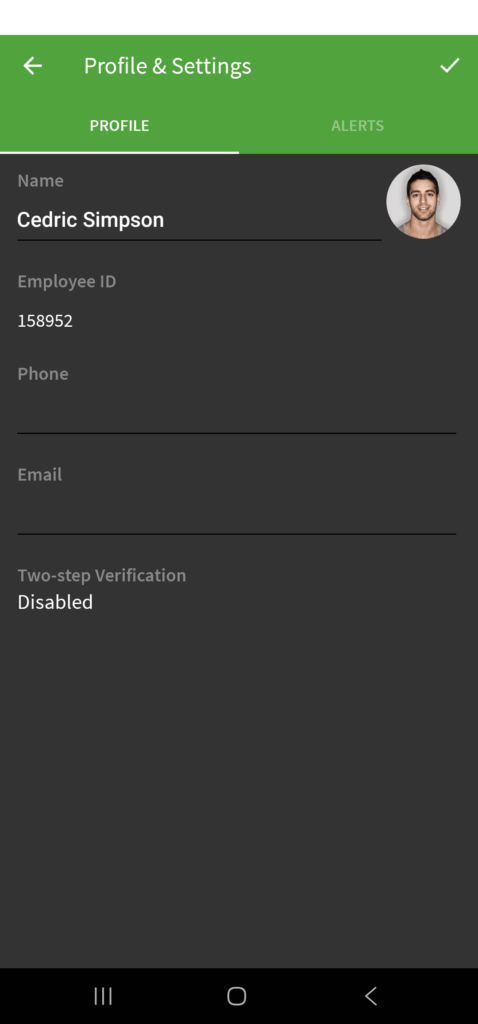
Here you can update your name, phone number, email address, profile picture, and enable two-step verification. While you can see your employee ID here, this is not editable except by a Manager.
Updates from an iOS Device
Similar to the Android app, the iOS app is limited on profile changes but more information is visible. 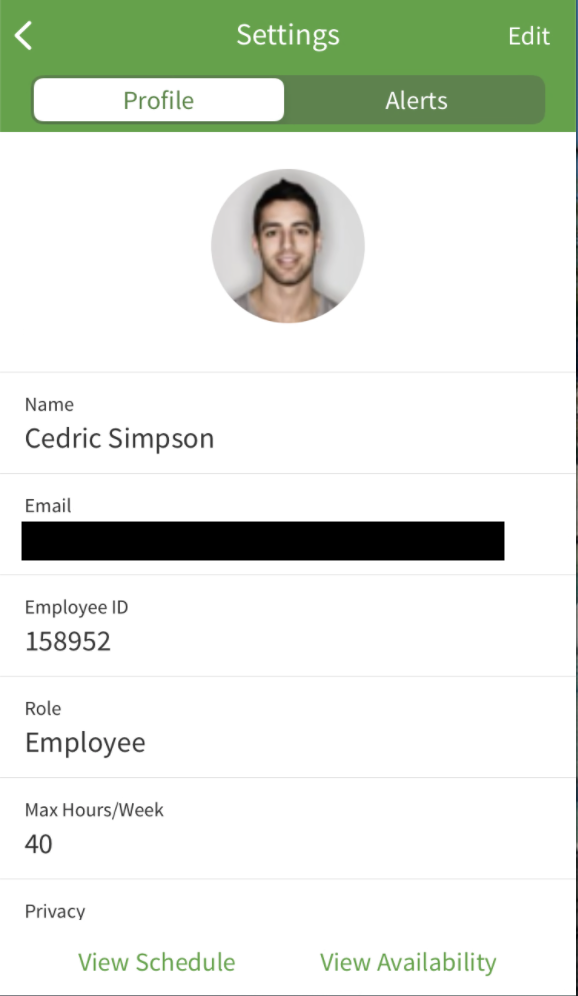
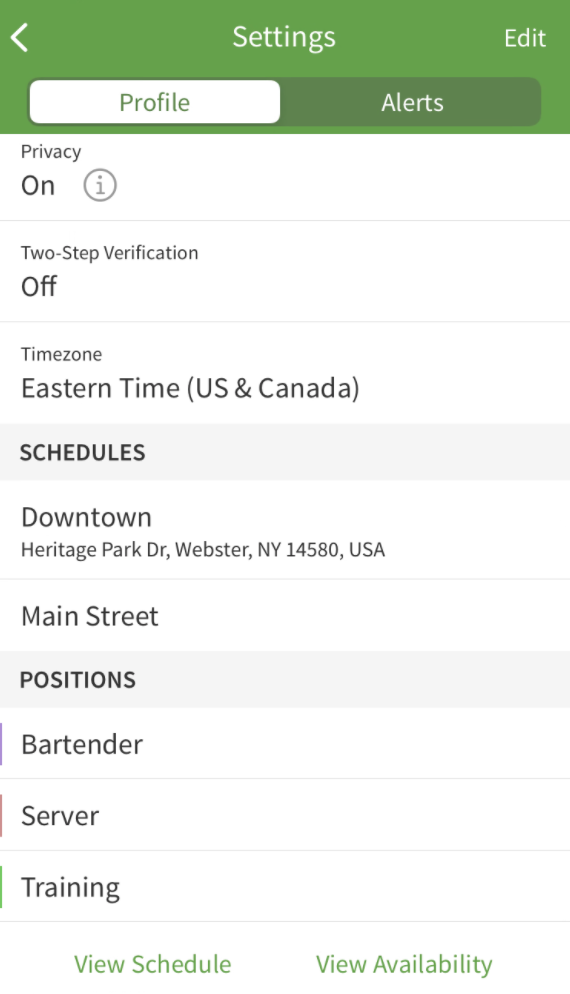
Here you can edit your profile picture, name, email, privacy setting, two-step verification, and timezone settings. All other visible fields are view only and editable only by a Manager.
Setting alert preferences
When I Work sends you alerts to make sure you stay informed about what’s going on. For example, you can receive an alert when the schedule is updated or you have an upcoming shift. Set your alert preferences to make sure you’re notified in the right place at the right time.
Alert preferences can be set on the web app or either of the mobile applications.

For more information, see Setting Alert Preferences.