
Overview
If your users are having trouble clocking in or clocking out from the When I Work app on their iOS and Android devices, follow the steps in this article to troubleshoot and resolve the issue.
Considerations
- You must have manager or admin access privileges to perform some troubleshooting steps in this article. If you have employee or supervisor level access, you’ll have to ask for help when you get to those steps.
- This article shows screenshots from the When I Work Staff Scheduling app for iOS. If you’re using When I Work Scheduling app for Android, the screens look similar.
- Always ensure your mobile application is the most current version available.
- Open the application information in the Google Play Store or the App Store
- Update the app if it shows one is available
- If no update is available, be sure to note the version on your device in case you reach out to Care for support, they will need this.
- On iOS, tap on More and the scroll down to the bottom of the menu. The app version will be listed here.
- On Android, tap More, scroll down to App Information, tap to show the current app version.
Clearing app cache
- On iOS:
- Uninstall the When I Work app
- Restart the device (this step is critical)
- Reinstall the When I Work app
- Try logging back in and look for the clock in button
- On Android (may vary slightly depending on the type of Android you are using):
- Log out of the When I Work app
- Go to Settings > Apps or Applications, and ensure all apps filter is being used
- Locate and select the When I Work app
- Go to storage and tap Clear Data
- After data is deleted, tap on Clear Cache
- Tap the back icon and then tap Force Stop
- Restart the device and open the app again to look for the button
The Clock In button is missing
Users use the Clock In and Clock Out button on the When I Work app dashboard to clock in and clock out for shifts and breaks.
- If you are an Admin or Manager user with access to the Attendance Settings, ensure the Clock In With Mobile App option is turned on.
- If you are a Supervisor or Employee user and don’t have access to settings, check with your Manager to look into the above settings.
Manager actions
Setting Off?
- Turn this on
- Save the setting
- Tell users to refresh the app
Setting On?
Let the user know the setting is on and to follow the next steps
Employee actions
- Ensure you are logged into the correct workplace
- Tap on the More icon in the lower right corner of the app
- See the name of the workplace listed just below the Log Out (Android) and Delete Profile (iOS device) button
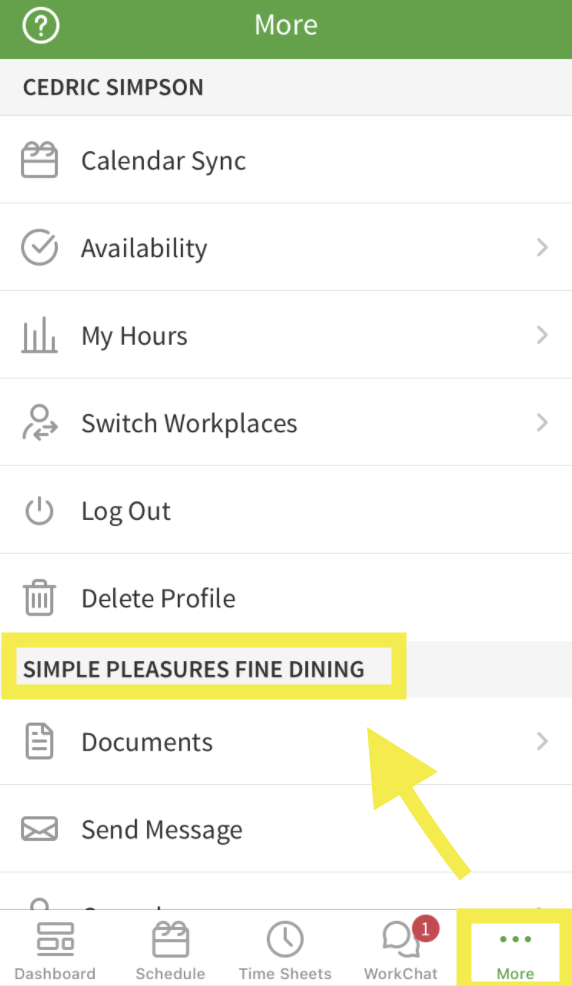
- Confirm your device meets the minimum requirements to run the mobile application.
- Clear the cache on your device.
Potential Error Messages
Existing timesheet entry
When using an iOS device, the Clock In/Out button will appear when entries are completed in timesheets, but the user will receive an error when attempting to use it. This error informs them entries exist and they don’t need to take action.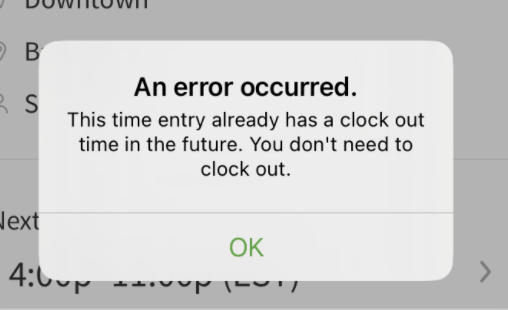
When using an Android device, the Clock In/Out button does not appear on the dashboard if there are already completed entries on the user’s timesheet that match the shift they are attempting to clock into.
Manager actions:
- Delete the existing timesheet entry to allow the user to clock in and out with the app
Employee actions:
- Review your timesheets and look for an entry
- If an entry exists, reach out to your manager to remove it
“You can only clock in for scheduled shifts.”
Tapping the the Clock In button causes an error message to appear if employees and supervisors are not allowed to clock in anytime. The message below appears.

This indicates that a scheduled shift is required for users to clock in using the mobile application.
Manager actions:
- If the user is supposed to be working, add a shift for them.
- If a shift has been added, some additional steps to take here:
- Check the shift has been published
- Check the user has only 1 profile in the account
- Manually edit the user’s timesheets for the entry without a scheduled shift.
- Allow employees and supervisors to clock in without a scheduled shift
- Set How Early Can Employees and Supervisors Clock In for a Shift to Anytime in Attendance Settings. You must have manager or admin access privileges to make this change.
Employee actions:
- Refresh the app
- Log out of the app and back in
- Clear the cache on your device
“You don’t have a shift scheduled.”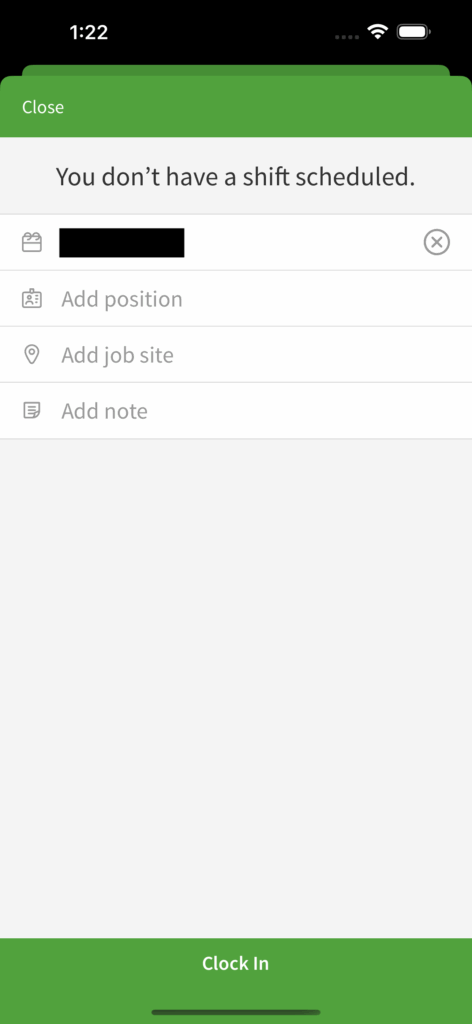
This is not actually an error message. It indicates that there isn’t a scheduled shift and the user needs to choose the schedule location before they can fully clock in.
It appears when a user tries to clock in without having a shift scheduled, but may be part of multiple schedule locations within the account. The app asks them to choose that location here.
Clock in after a specific time

This indicates there is a threshold set for how early you can clock in for a shift.
Manager actions:
- Tell the employee to wait until to their shift start time to clock in.
- Change how early employees and supervisors can clock in
- Set How Early Can Employees and supervisors Clock In for a Shift to 0, 5, 15, or 30 minutes before in Attendance Settings. You must have manager or admin access privileges to make this change.
- Manually edit the user’s timesheets to add the clock-in entry for the shift.
Employee actions:
- Wait until after the time mentioned in the message.
- If after the time stated:
- Refresh the app
- Log out and back in
- Check device settings to ensure the time zone settings align with the shift time
- Clear the cache on your device
Location issues
If the Attendance Settings to require employees and supervisors to clock in and clock out near the schedule location or job site where their shifts occur, the When I Work app prevents them from clocking in or out if they are too far away or seem to be too far away.
When this happens, the app displays a message letting the user know that they are not at their assigned location.
Must be within X meters
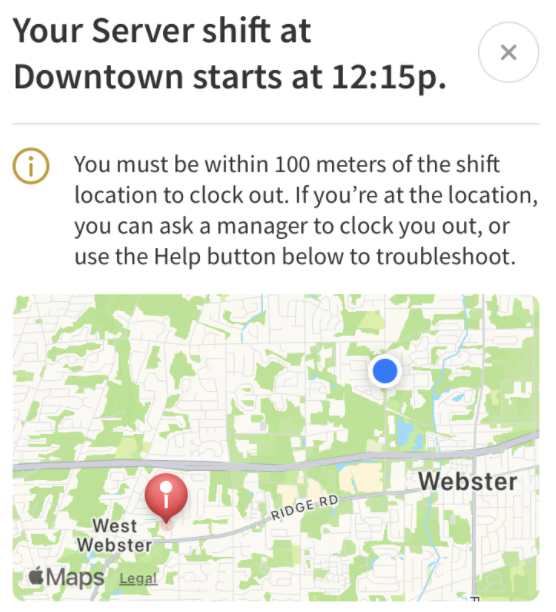
This indicates the user is not within the range of the location and can not clock in/out for their shift. The red pin on the map represents the schedule or job site location. The blue dot represents the user’s current location. If the schedule or job site address pin looks like it’s in the right spot on the map, the user might be in the wrong place.
Manager actions:
- Check the schedule address to ensure this is accurate
- Check the shift details for the user’s shift to confirm it is scheduled correctly
- If not correct, update where the shift is scheduled and republish it
- Change the threshold on where users can clock in or out
- Manually edit the user’s timesheets to add the clock-in entry for the shift at the location
Employee actions:
- Check the shift details for the correct location
- Check location services are on for the device
- Turn on location services on iPhone
- Turn on location services on Android phone
- If on, toggle this off and back on to reset location data
- Be sure you are sharing your location with the When I Work application
- Ensure you have an internet connection (either wifi at the location or data)
- Clear the cache on your device
“You must be at your shift location to clock in/out, but we don’t reconize the address for..”
This message indicates that When I Work can not verify the address of the Schedule or Job Site location to compare your device location with. It could be the address is too new for Google Maps or Apple Maps to recognize yet.
Manager actions:
- Double check that the Schedule and Job Site addresses are valid using Google Maps or Apple Maps to confirm
- Update the address to one that is valid or add custom coordinates
Employee actions:
- Contact your Manager to check and update the address locations
Possible Cause: Location doesn’t match the street address
In some cases, the place where users need to clock in and clock out doesn’t match the street address of the schedule or job site. For example, golf course employees might clock in at a service entrance that is located far away from the clubhouse.
Checking a map can help determine if this is the issue with the location.
In situations like this, an address may not work well. We recommend instead using custom coordinates to map out the clock in location.
Possible Cause: Weak or no GPS signal
The When I Work app relies on a GPS signal to determine its location. If a user is trying to clock in or clock out from a location that has weak or no GPS signal, such as a large building or basement, the app cannot determine its location and the user cannot clock in or out.
Manager actions:
- Allow employees and supervisors to clock in and out without GPS reception, turn off the Employees and Supervisors Must Be Near Location to Clock In / Clock Out setting in the Attendance Settings.
This will allow users to clock in and clock out from anywhere, regardless of their location. - Set up a fixed time clock terminal at the schedule location or job site. Fixed terminals do not rely on GPS location.
- Allow users to clock in from their work computers at the schedule’s location.
Employee actions:
- Check your internet connection to ensure connectivity
- Toggle between mobile data and wifi
- Ensure airplane mode is off
- Clear the cache on your device