
Overview
When I Work allows you to sync the work schedule to other calendar applications using your computer, iPhone, or iPad.
Calendar sync is currently not available from the Android application.
Use calendar sync to:
- Overlay your work schedules on top of you existing personal calendar.
- Let friends and family see your work schedule, even if they don’t use When I Work.
- Overlay published shifts from multiple schedules as an admin, manager, or supervisor.
How does calendar sync work?
When I Work calendar sync uses an open standard called iCalendar to share the work schedule with third-party calendar applications and services.
Syncing your calendar on an iPhone or iPad adds your work schedule to the Calendar app on your device only. If you want to sync your schedule directly to an online calendar like Google Calendar or Outlook, set up calendar sync from your computer instead.
You have the option to sync several subsets of the work schedule:
- Your Schedule: Shifts that are assigned to you.
- OpenShifts: OpenShifts that you are both qualified and available to take.
- *Entire Schedule: All shifts for all locations (Not available for employee users on iOS calendar sync)
- **Location-specific Schedules: All shifts scheduled at a specific location.
- When I Work syncs published shifts for up to one year in the future. Prior shifts will still be available to Admin, Manager, and Supervisor users by exporting the data on a computer.
*If you have employee-level access privileges, the full schedule sync may be unavailable if your employer has chosen to prevent employees from viewing the full schedule.
**Location specific schedules syncing is not available for employee level users
How often does calendar sync update?
Calendar applications typically refresh the When I Work schedule on a regular interval, which can vary from several minutes to several hours depending on the application. Some calendar applications may allow you to change the refresh interval and some may not.
Depending on your iOS device settings, the Calendar app can update your work calendar on a regular schedule or only when you manually check for updates. To change the sync schedule, change the Fetch New Data setting in Settings app > Calendar > Accounts or Settings app > Account & Passwords (depending on iOS version)
How do I get help with calendar sync?
If you need help setting up or troubleshooting calendar sync, contact the maker of the calendar app or service that you’re using. For the iOS calendar app, contact apple. Our Customer Care team cannot provide support for third-party software.
Setting up on a Computer
Step 1: Get the calendar sync link
- From the My Schedule page
- In the top right, click Calendar Sync.

- Copy the link for the schedule view you’d like to sync:
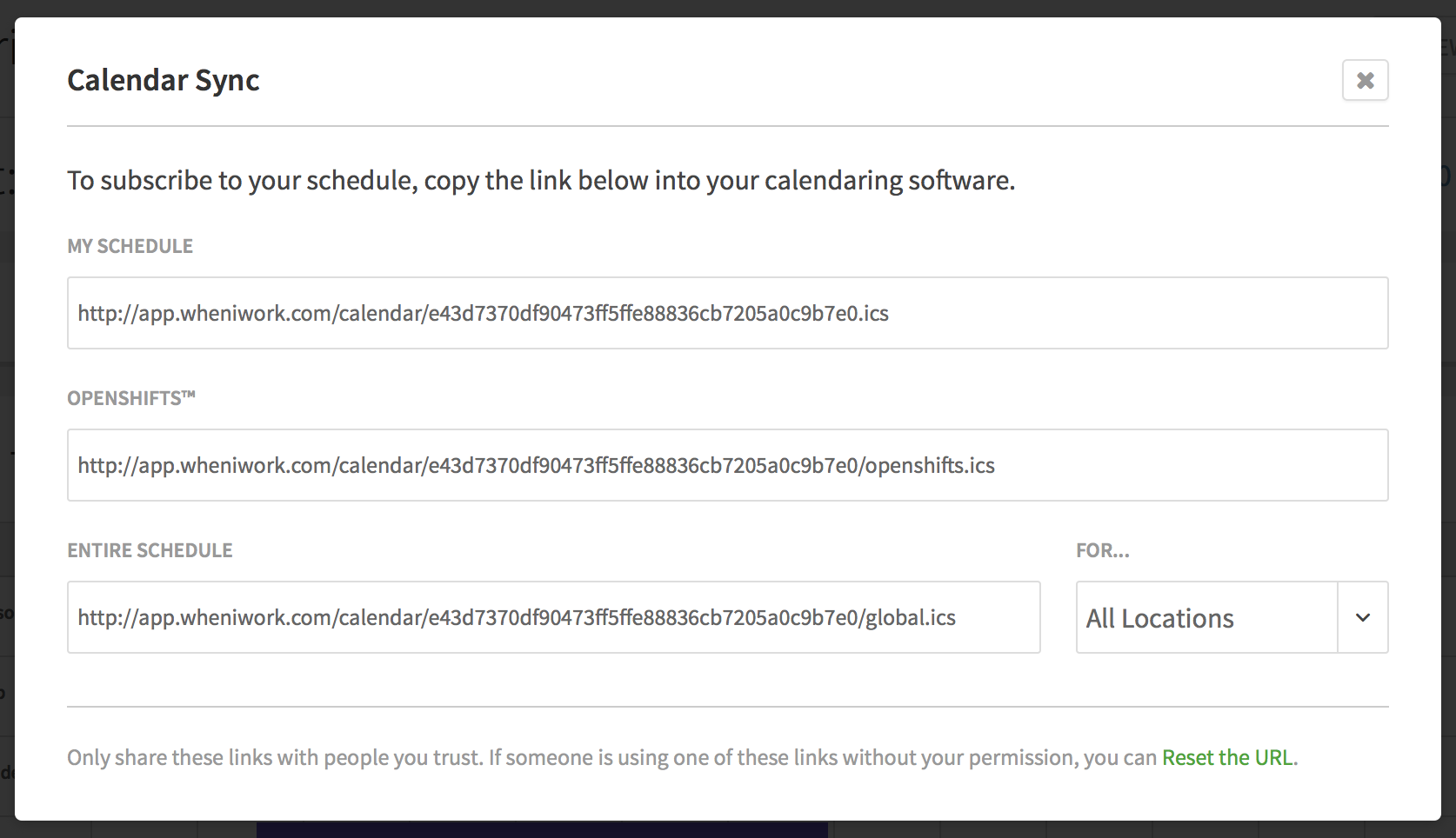
- My Schedule: Includes only shifts that are assigned to your name in your calendar app.
- OpenShifts: Includes only OpenShifts that haven’t been picked up yet.
- Entire Schedule: Includes all shifts and OpenShifts for your workplace. If your workplace has more than one schedule, you can choose to sync the schedule for a specific schedule by selecting it from the menu.
Step 2: Add the link to your calendar application
The process to add the When I Work link to your calendar varies by application:
- If your calendar application supports iCalendar links, you may be able to paste the link directly into the application.
- If your calendar application expects an .ics file, paste the When I Work calendar link into a web browser to download the file, then open the .ics file in your calendar application.
Instructions for common calendar applications:
Setting up on iOS
- From the When I Work Staff Scheduling app, tap More in the bottom-right corner of the screen.
- Tap Calendar Sync.
- Tap the schedule that you want to sync to your Calendar app.
- Your Schedule: Shifts that are assigned to you.
- OpenShifts: OpenShifts that you are both qualified and available to take.
- Entire Schedule: All shifts for all locations.
Not available if you have employee access privileges. - Location-Specific Schedule: All shifts scheduled at a specific location.
Not available if you have employee access privileges.
- You may be prompted to allow access to your location for the app
- Tap Subscribe to add the schedule to your Calendar app.
- Tap View Events to go to the Calendar app or Done to finish
Refresh the work schedule
- Open the Calendar app.
- Tap Calendars at the bottom of the screen.
- Swipe down on the list to refresh your calendars