
Overview
If your users are having trouble clocking in from a time clock terminal, follow the steps in this article to troubleshoot and resolve the issue.
Considerations
You must have manager or admin access privileges to perform some troubleshooting steps in this article. If you have employee or supervisor level access, you’ll have to ask for help when you get to those steps.
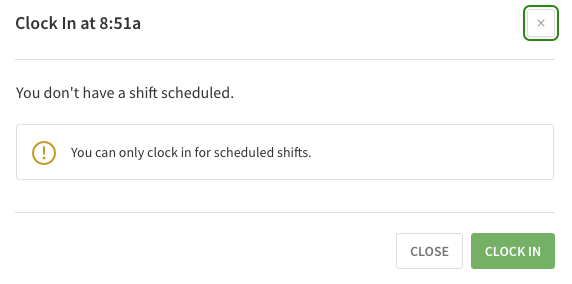
A no shift message appears
This message appears for Employee and Supervisor users when they try to clock in for a shift and there is not a shift at the location they are attempting to clock in at.
Employee Troubleshooting
- Check your shift details in the app or on the web
- Do you see a shift scheduled for today?
- No – Contact your Manager to create the shift or clock you in manually
- Yes – Is it time for the shift to start?
- No – Wait until closer to the beginning of the shift to clock in
- Yes – Are you at the right location?
- No – Go to the right location or ask your manager to update the location of the shift to allow you to clock in
- Yes – Contact your manager to have them reset the time clock terminal
Manager Troubleshooting
- If an Employee contacts you because they “don’t have a shift scheduled”:
- Create a shift for them to clock in for
- Manually edit the user’s timesheets and add the entry manually
- Check the How early can employees and supervisors clock in for shifts settings in the Attendance Settings. Ensure the employee is within the threshold.
- Unlock and set the time clock terminal back up at the location
Terminal stuck on a specific user
This is an issue specifically on a Computer Time Clock Terminal. If the time clock terminal only gives the option to clock in as a specific user, that user is probably signed in to the When I Work web app in another browser tab.
Employee Troubleshooting
None – Contact your Manager to have them correct this error message.
Manager Troubleshooting
- Find the browser tab where the user is signed in to When I Work.
- Sign the user out.
- Refresh the time clock terminal page.
- If that doesn’t fix the issue, reauthorize the terminal.
Nothing happens when users clock in or out
If the time clock terminal doesn’t respond or persistent loading happens when users try to clock in and out, the computer might have lost its connection to When I Work or the supervisor, manager, or admin that originally authorized the terminal has been demoted to employee-level access privileges.
On the mobile time clock terminal app, you may also see the following error messages:
- The internet connection appears to be offline
- Network Error
- Cannot connect to the internet. Please check your connection and try again.
Employee Troubleshooting
- Check the computer internet connection and ensure it is connected to an active network.
- Refresh the browser window.
Manager Troubleshooting
- Make sure the computer is connected to a Wi-Fi network or wired network.
- Verify that the Internet connection is working.
- Refresh the time clock terminal page.
- Close and reauthorize the terminal.
A missing user message appears
This message appears when the Supervisor, Manager, or Admin user that originally set up the terminal has been changed to Employee level access. You may see either of the following messages:
- User ID does not exist.
- The user you are looking for is not here.
Employee Troubleshooting
None – Contact your Manager to have them correct this error message.
Manager Troubleshooting
- Close and reauthorize the terminal.
- If you have Manager or Admin access privileges, you can restore the original user’s access level.
A “user login required” message appears
If you see a message, “User login required for this resource”, this indicates the Supervisor, Manager, or Admin user that originally authorized the terminal has been deleted from the account.
Employee Troubleshooting
None – Contact your Manager to have them correct this error message.
Manager Troubleshooting
- Close and reauthorize the terminal.
- If you have Manager or Admin access privileges, you can reactivate the deleted user.