
Overview
If your users are having trouble clocking in from the When I Work web app on their personal computers, follow the steps in this article to troubleshoot and resolve the issue.
Considerations
- You must have manager or admin access privileges to perform some troubleshooting steps in this article. If you have employee or supervisor level access, you’ll have to ask for help when you get to those steps.
- When location-based restrictions are enabled, When I Work verifies that employees and supervisors are clocking in from their scheduled location on their personal computer by checking the IP address of their internet connection.
- If your workplace does not have a static IP address, users can clock in on a personal computer using their browser’s location services. (Steps below)
The Clock In button is missing
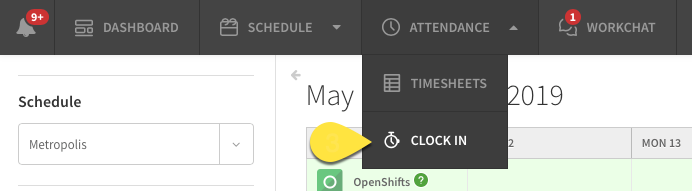
If the “Clock In” button is missing, this can indicate that the personal computer clock in is disabled or that you are logged into the wrong workplace account.
Employee/Supervisor Troubleshooting
- If you are part of more than one workplace in When I Work, make sure you are logged into the correct one.
- Log out and back in to refresh the data as a back up.
- Attempt to clock in using the mobile application instead.
- Note that this option may not be available depending on the account settings.
- Contact your manager to have them check the account settings.
Manager Troubleshooting
- Check the Attendance Settings of the account and ensure that computer clock in is enabled.
Time/shift based error messages
- “You can clock in anytime after X AM/PM”
- “You can only clock in for scheduled shifts”
- “You don’t have a shift scheduled”
- This is not an actual error message, but more of a notice. Selecting a location and a position for your shift should allow you to continue clocking in for the day.
Employee Troubleshooting
- Check that you have a shift for today on your schedule.
- Wait until closer to the start time of your shift.
- Contact your manager to check the account settings.
Manager Troubleshooting
- Check the “user must be within X minutes of a scheduled shift” option in the Attendance Settings to confirm if a user is clocking in too early.
- Confirm the shift time matches the time of day.
- For example, if the shift is 8PM, but the user is supposed to start at 8AM
- Check that the user in question has a published shift for the day.
- Create a shift if one does not exist for the user yet.
Location based error messages
- “You must be at your shift location to clock in, but we can’t verify your location. Make sure your browser allows us to access your location.”
- “You must be at your shift location to clock in, but we don’t recognize the address for [shift location]. Have your Manager update it in When I Work.”
- “You must be within [clock in threshold] to clock in/ clock out.”
Employee Troubleshooting
- Make sure you have a strong and stable internet connection.
- Refresh the browser window.
- Check the browser settings to ensure When I Work has access to your location
- Some common browser troubleshooting links:
- Verify the address via Google Maps or Apple maps to ensure accuracy of the location.
- Contact your Manager for more in depth account troubleshooting.
Manager Troubleshooting
- Confirm the address the address of the Schedule or Job Site matches that within Google Maps or Apple Maps.
- Check the threshold setting in the Attendance Settings. Make this bigger to allow a more broad location to clock in.
- Change the location from a physical address to an IP address at the location.
- After making any changes, have the user to log out of When I Work and back in again to refresh new setting data.
Other behaviors preventing clock in/out
- “A time entry already exists for this time frame” or similar messaging.
- This indicates a timesheet entry is already present at the time you are trying to clock in. Review your own timesheet to see find the existing entry.
- If you can edit it, do so to match your clock in/out time.
- If you can not edit it, contact your manager and have them edit the time entry.
- This indicates a timesheet entry is already present at the time you are trying to clock in. Review your own timesheet to see find the existing entry.