
Overview
Schedule an OpenShift when you’d like users to pick up shifts instead of assigning them to specific employees. You can allow shifts to be picked up on a first-come-first-serve basis or set them up to require approval from management.
Requiring approval from management is sometimes known as Shift Bidding because employees will request or “Bid” on the shift and then management decides who gets the shift.
You can schedule an OpenShift from your computer using the web app, or from the Android or iOS mobile applications.
Computer
Option A: From users view
Use users view to add an OpenShift if you prefer to think about schedule coverage based on who is scheduled. In users view, the top row of the Scheduler is dedicated to OpenShifts.
Click Scheduler.
- Click Users from the drop-down menu under the date(s).
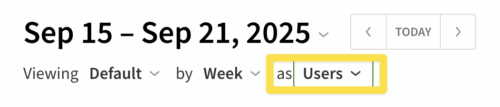
- In the OpenShifts row, click the cell that corresponds to the date when the shift will occur.
- Set up the shift (If any shift templates exist, you will see a screen as below, otherwise, you will instead jump directly into the custom shift screen):

Callout Description a To use an existing shift template without making any changes, click it to add it. b To use a shift template, but modify the details such as break times, position, etc, click the pencil icon. (Use this option to add multiples of the same shift for pickup.) c If none of the existing shift templates work for the shift you want to create, click Create Custom Shift to create a shift from scratch. (You can also create multiple of the same shift here by using the How Many field in the custom shift details.) Callout Description a To use an existing shift template without making any changes, click it to add it. b To use a shift template, but modify the details such as break times, position, etc, click the pencil icon. (Use this option to add multiples of the same shift for pickup.) c If none of the existing shift templates work for the shift you want to create, click Create Custom Shift to create a shift from scratch. (You can also create multiple of the same shift here by using the How Many field in the custom shift details.)
**The OpenShift isn’t visible to employees until you publish and alert your staff.
Option B: From positions view
Use positions view to add an OpenShift if you prefer to think about schedule coverage based on which positions need to be filled.
Click Scheduler.
- Click Positions from the drop-down menu under the date(s).
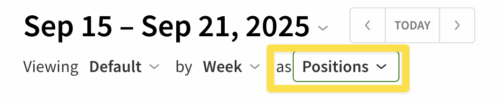
- Click the cell that corresponds to the position the OpenShift will apply to and the date when it will occur.
If the OpenShift doesn’t apply to a specific position, use the No Positions row.
- Make sure Assign to is set to OpenShift.
- If you want to add multiple OpenShifts, enter the number of shifts in How Many.
- The same options are available here for setting up a shift as in the above chart.
**The OpenShift isn’t visible to your employees until you publish and alert your staff.
Any shifts requiring pick up approval are marked with a pick up approval icon in the scheduler.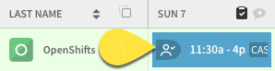
Computer shift details
Whether you’re scheduling an OpenShift by creating a custom shift or using a shift template, you can modify the shift’s details.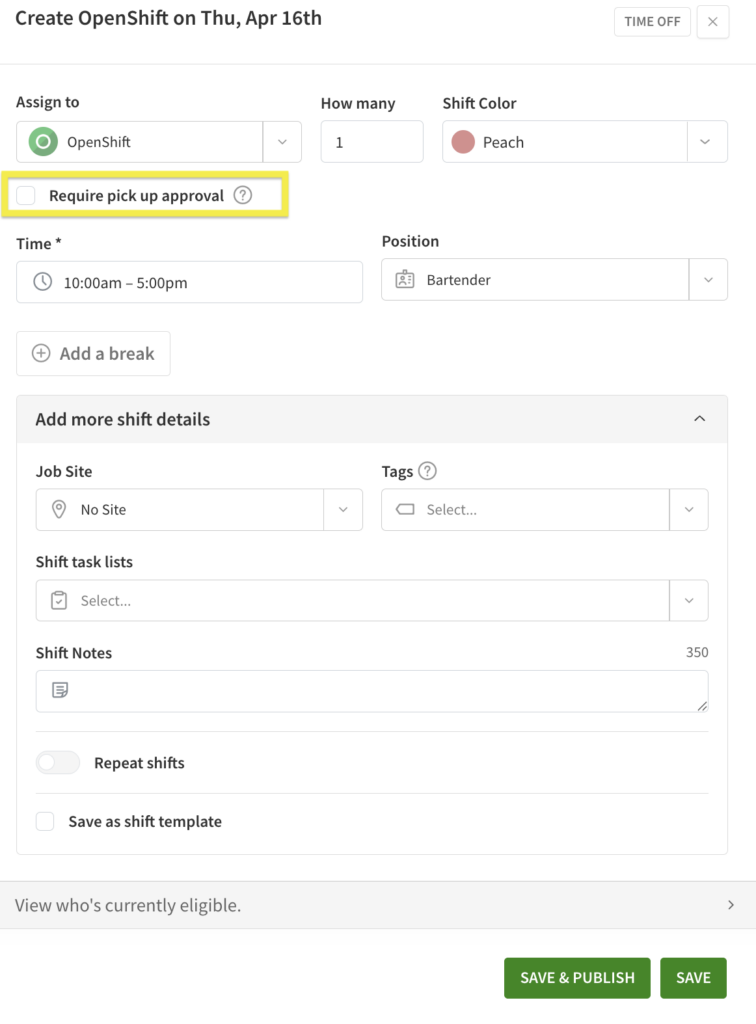
Note that when you want to enable Shift Bidding, you will check the box highlighted above to Require pick up approval.
| Name | Assign to |
| Description | (Required) Select who will work the shift. To let any qualified user take this shift, select OpenShift.
|
| Name | Require pick up approval² |
| Description | (Optional) Click to require pick up approval by management. |
| Name | Share shift with other schedules² |
| Description | (Optional) Offer OpenShifts to qualified users who aren’t assigned to the same schedule as the shift. |
| Name | How many¹ |
| Description | (Optional) Select how many instances of an OpenShift you’d like to publish. |
| Name | Time |
| Description | (Required) Set the the start and end time for the shift. |
| Name | Breaks |
| Description | (Optional) Add a paid or unpaid break in minutes and decide the start time of the break. For example, enter 30 for a half-hour break and 2:30pm for the when they should start this break.
Note: If using Time Clock & Attendance with Automatically Deduct Scheduled Breaks From Timesheets enabled, an unpaid break in the shift details is required for the break to be automatically deducted from timesheets. |
| Name | (Color) |
| Description | (Optional) Select a color for the shift in the top-right corner of the screen. |
| Name | Position |
| Description | (Optional) Select the position that needs to be filled. Assigned positions are listed first in the drop-down list and unassigned positions are grouped together. |
| Name | Job site |
| Description | (Optional) If the shift will take place off site from your normal location, select a job site. |
| Name | Tags |
| Description | (Optional) Select tags if the shift requires additional qualifications or certifications. |
| Name | Shift tasks lists |
| Description | (Optional) Select task lists for the shift. |
| Name | Shift notes |
| Description | (Optional) Add notes (up to 350 characters). **Note: If a shortened URL is used here, it may result in a “<link removed>” message when team members view this via SMS. |
| Name | Repeat shift |
| Description | (Optional) Click to set up a repeating shift. |
| Name | Save as shift template |
| Description | (Optional) Click to create a shift template based on this shift. |
| Name | View who’s currently eligible² |
| Description | (Optional) Click to offer the shift to specific eligible users. |
| Name | Description |
| Assign to | (Required) Select who will work the shift. To let any qualified user take this shift, select OpenShift.
|
| Require pick up approval² | (Optional) Click to require pick up approval by management. |
| Share shift with other schedules² | (Optional) Offer OpenShifts to qualified users who aren’t assigned to the same schedule as the shift. |
| How many¹ | (Optional) Select how many instances of an OpenShift you’d like to publish. |
| Time | (Required) Set the the start and end time for the shift. |
| Breaks | (Optional) Add a paid or unpaid break in minutes and decide the start time of the break. For example, enter 30 for a half-hour break and 2:30pm for the when they should start this break.
Note: If using Time Clock & Attendance with Automatically Deduct Scheduled Breaks From Timesheets enabled, an unpaid break in the shift details is required for the break to be automatically deducted from timesheets. |
| (Color) | (Optional) Select a color for the shift in the top-right corner of the screen. |
| Position | (Optional) Select the position that needs to be filled. Assigned positions are listed first in the drop-down list and unassigned positions are grouped together. |
| Job site | (Optional) If the shift will take place off site from your normal location, select a job site. |
| Tags | (Optional) Select tags if the shift requires additional qualifications or certifications. |
| Shift tasks lists | (Optional) Select task lists for the shift. |
| Shift notes | (Optional) Add notes (up to 350 characters). **Note: If a shortened URL is used here, it may result in a “<link removed>” message when team members view this via SMS. |
| Repeat shift | (Optional) Click to set up a repeating shift. |
| Save as shift template | (Optional) Click to create a shift template based on this shift. |
| View who’s currently eligible² | (Optional) Click to offer the shift to specific eligible users. |
¹Appears only when you’re scheduling an OpenShift.
²Appears only when you’re scheduling an OpenShift and shift criteria has been defined.
Mobile applications
The process is the same for both Android and iOS devices, however the images below are from the Android mobile application.
- From the When I Work Scheduling app, tap Scheduler on the bottom of the screen.
- Tap in the lower right of the schedule. (If you are using an iOS device, this icon will be in the top right corner instead.)
- You will see a list of shift templates that can be used to recreate commonly used shift details. If you haven’t added shift templates for shifts that regularly occur, create a shift template.
- If you do not want to use a shift template, tap Custom Shift.
- Set up the shift details. Whether tapping an existing template or creating a custom shift, you will be able to edit details before saving the shift.
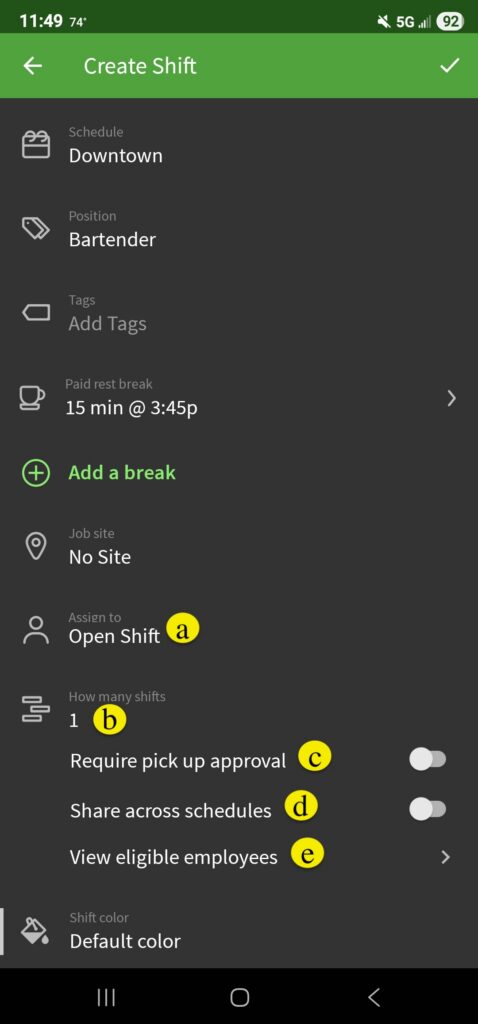
| Callout |
| Description |
| a |
| Make sure the Assign To field is set to OpenShift. |
| b |
| If you want to offer more than one of the same shift, enter that number under How many shifts |
| c |
| Toggle pick up approval on if you want managers to approve requests to take the shift(s). |
| d |
| If using Labor Sharing, toggle this on to share the shift(s) across to other schedule locations. |
| e |
| Tap View eligible employees to see who can take the shift based on the current details. You can also uncheck employees who should not be offered the shift. |
| Callout | Description |
| a | Make sure the Assign To field is set to OpenShift. |
| b | If you want to offer more than one of the same shift, enter that number under How many shifts |
| c | Toggle pick up approval on if you want managers to approve requests to take the shift(s). |
| d | If using Labor Sharing, toggle this on to share the shift(s) across to other schedule locations. |
| e | Tap View eligible employees to see who can take the shift based on the current details. You can also uncheck employees who should not be offered the shift. |
4. Tap the icon in the top right corner of the app to save the shift. (On iOS devices, tap Save in the top right corner instead.)
Frequently asked questions
How do OpenShifts work?
When you publish an OpenShift, employees that are both qualified and available for the shift are eligible to pick it up. The first employee to view and accept the OpenShift gets it automatically, unless the Require pick up approval option is checked in the shift. In that case, management will decide who gets the shift.
What defines an eligible employee?
An employee is eligible to pick up a shift if they meet the following criteria:
- They are qualified for the shift based on their tagged positions.
- They are not already scheduled for a published shift.
- They are not scheduled for approved time off.
- They are not hidden in the scheduler.
When are employees notified about OpenShifts?
When I Work notifies employees when:
- You publish an OpenShift that they’re eligible to take.
- You save changes to a published OpenShift that they’re qualified to take.
- You offer them an OpenShift.
When you offer an OpenShift to specific employees, notifications about the OpenShift are sent only to those employees.